Practical documentation for people and venues that want to accept cashless tips with DajTipa.
Articles
19 documentation sections prepared
Account basics
What DajTipa is
01
DajTipa is a platform for accepting online tips through a personal link, QR code and popular payment methods.
In this article
What DajTipa is for
Main features
Who can use it
Why it helps
What DajTipa is for
DajTipa helps service workers accept tips when a guest has no cash. Every user gets a personal tipping page that can be opened from a link or by scanning a QR code.
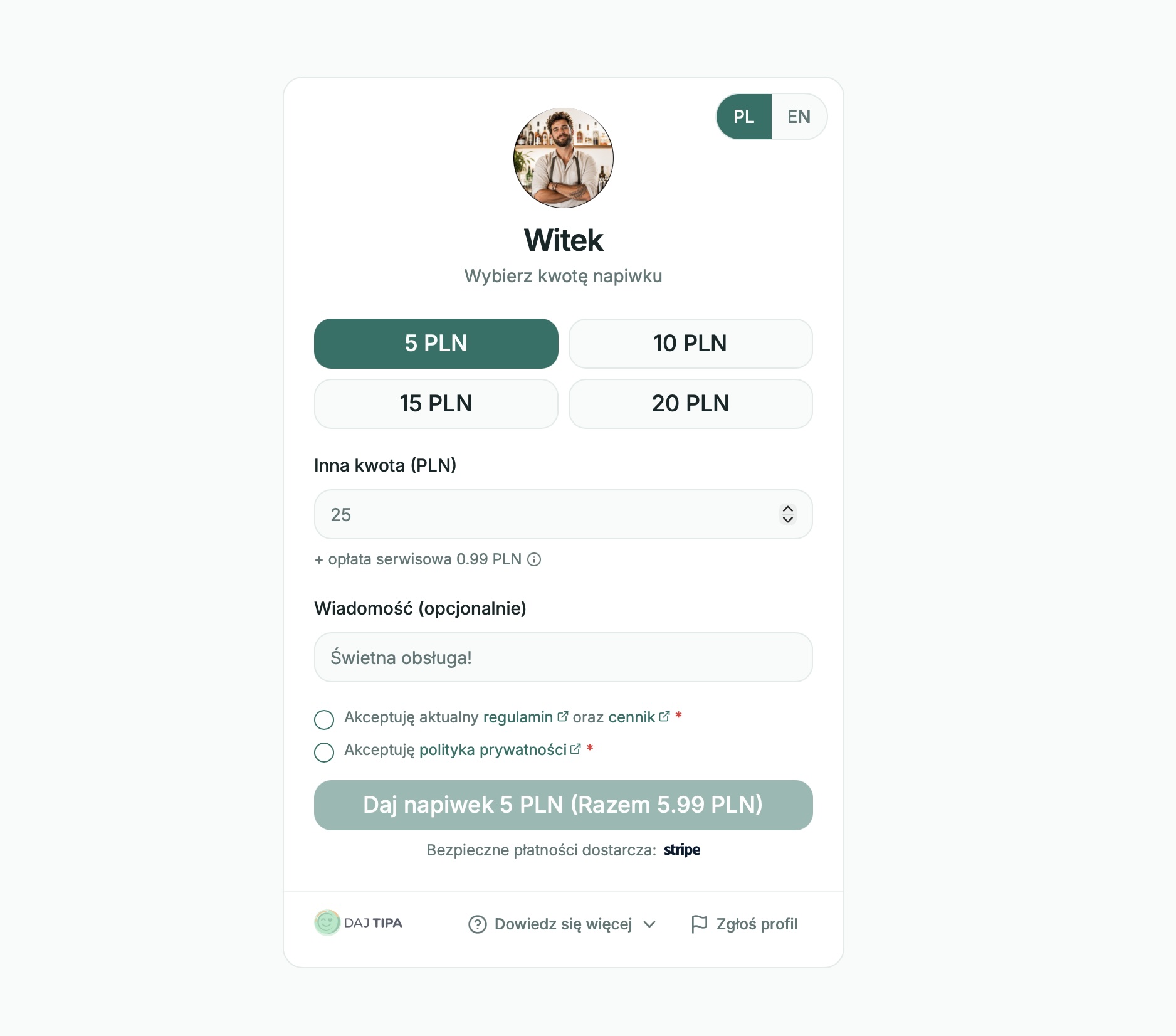
The guest chooses an amount, can add a short message and pays online. They do not need to create an account or install an app.
Main features
The app includes a personal tipping page, QR code, tip history, dashboard summary and profile settings. DajTipa also supports venue mode, where tips can be split between people working on a shift.
Payouts use Stripe Connect. Bank details are handled by Stripe, while DajTipa shows the connection status and the information you need for everyday use.
Who can use it
DajTipa can be used by waiters, baristas, bartenders, hotel staff, hairdressers, guides, musicians and other people who receive voluntary tips from customers.
It also works for venues that want clearer team tips and less manual cash handling.
Why it helps
DajTipa makes it easy to receive a tip from a phone, track transaction history and give the guest a simple way to say thank you for good service.
Fees are described in the pricing page, and legal and privacy documents are available at dajtipa.pl.
Account basics
Creating an account
02
You create a DajTipa account in the app by entering your public name, email address, password and required consents.
In this article
What to prepare
How to sign up
Email activation
What happens next
What to prepare
You need an email address you can access and a password with at least 6 characters. The email address is used for login, notifications and account confirmation.
It is also worth choosing the name guests will see on your tipping page. This can be your first name, your name with an initial or a work name, such as Barista Anna.
How to sign up
Open the DajTipa app and go to the sign-in screen. Choose sign up, fill in the form, accept the required documents and create the account.
Newsletter consent is optional. The terms, pricing and privacy policy are required because they explain how the service works.
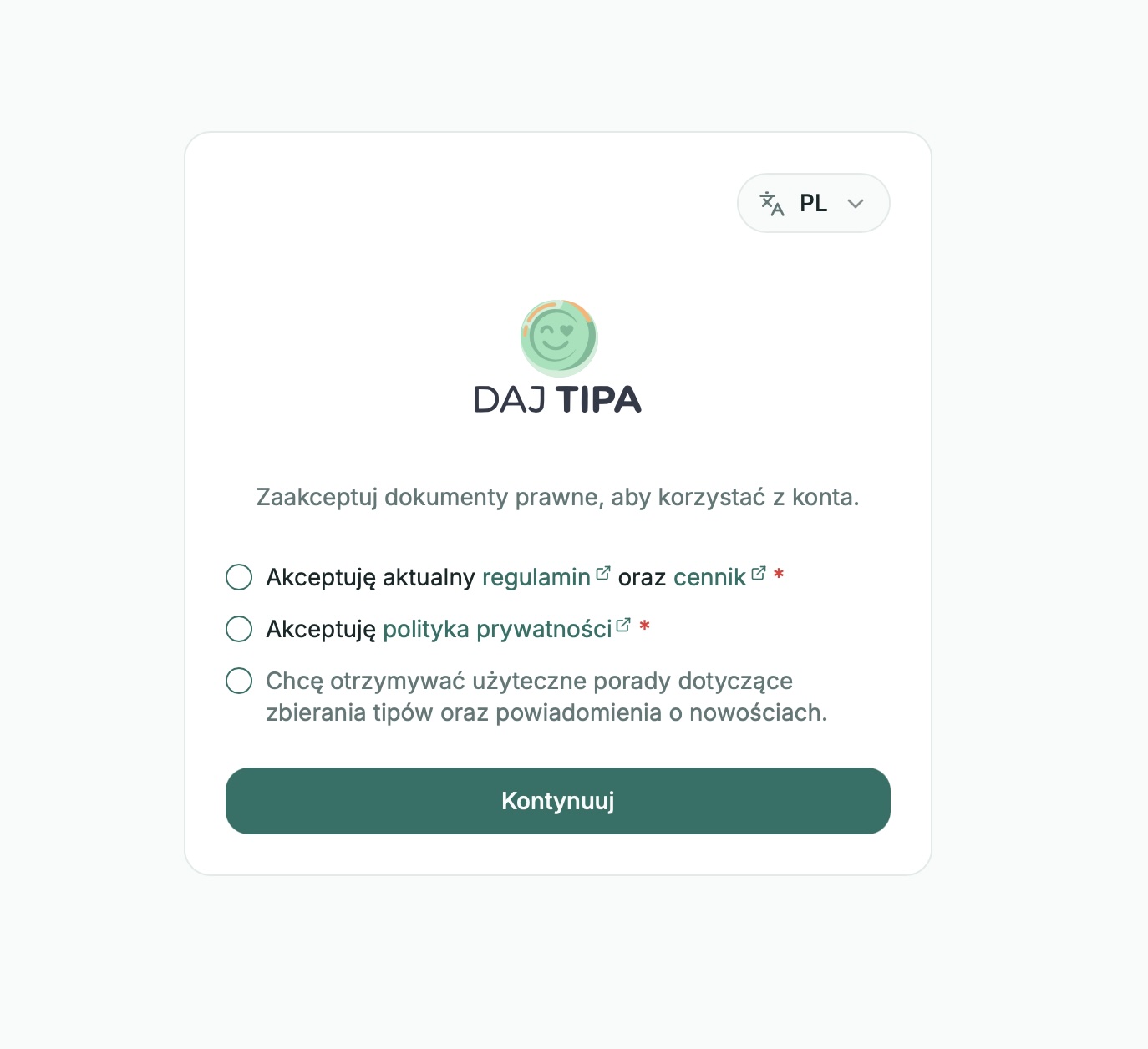
Before using the account, the user accepts the required service documents. Marketing consent is separate and optional.
Email activation
After registration, you receive an activation email from DajTipa. Open it and click the confirmation link. The link is single-use and works only for a limited time.
If the message does not arrive, check spam and wait a few minutes. If the email is already registered, use password recovery or log in directly.
What happens next
After confirming your email address, you enter the app. The next step is onboarding, where you complete your profile, photo, phone number, tip amounts and Stripe connection.
Account basics
Password recovery
03
If you forgot your password, you can set a new one without losing your account data.
In this article
Requesting a reset link
Setting a new password
Link validity
Changing password while logged in
Requesting a reset link
On the sign-in screen, choose the password recovery option. Enter the email address connected to your account and send the reset request.
You will see a confirmation message. Check your inbox for an email from DajTipa.
Setting a new password
Click the link in the email. It opens a page where you can enter a new password. The password must have at least 6 characters.
After saving the new password, you return to sign in. From then on, use the new login details.
Link validity
The reset link is single-use and expires after a short time. If the app says the link is invalid or expired, start password recovery again.
Changing password while logged in
If you are already logged in and only want to change your password, go to your profile and find the security section. You can set a new password there without using email.
Account basics
Two-factor authentication
04
2FA adds a second login step. In addition to your password, you enter a code from an authenticator app.
In this article
What 2FA means
Turning on 2FA
Logging in with 2FA
Turning it off and fixing problems
What 2FA means
DajTipa supports TOTP codes, which are one-time codes generated in an authenticator app. After turning this on, your password alone is not enough to log in.
You can use apps such as Google Authenticator, Authy, Microsoft Authenticator, 1Password, Bitwarden or another password manager that supports TOTP codes.
Turning on 2FA
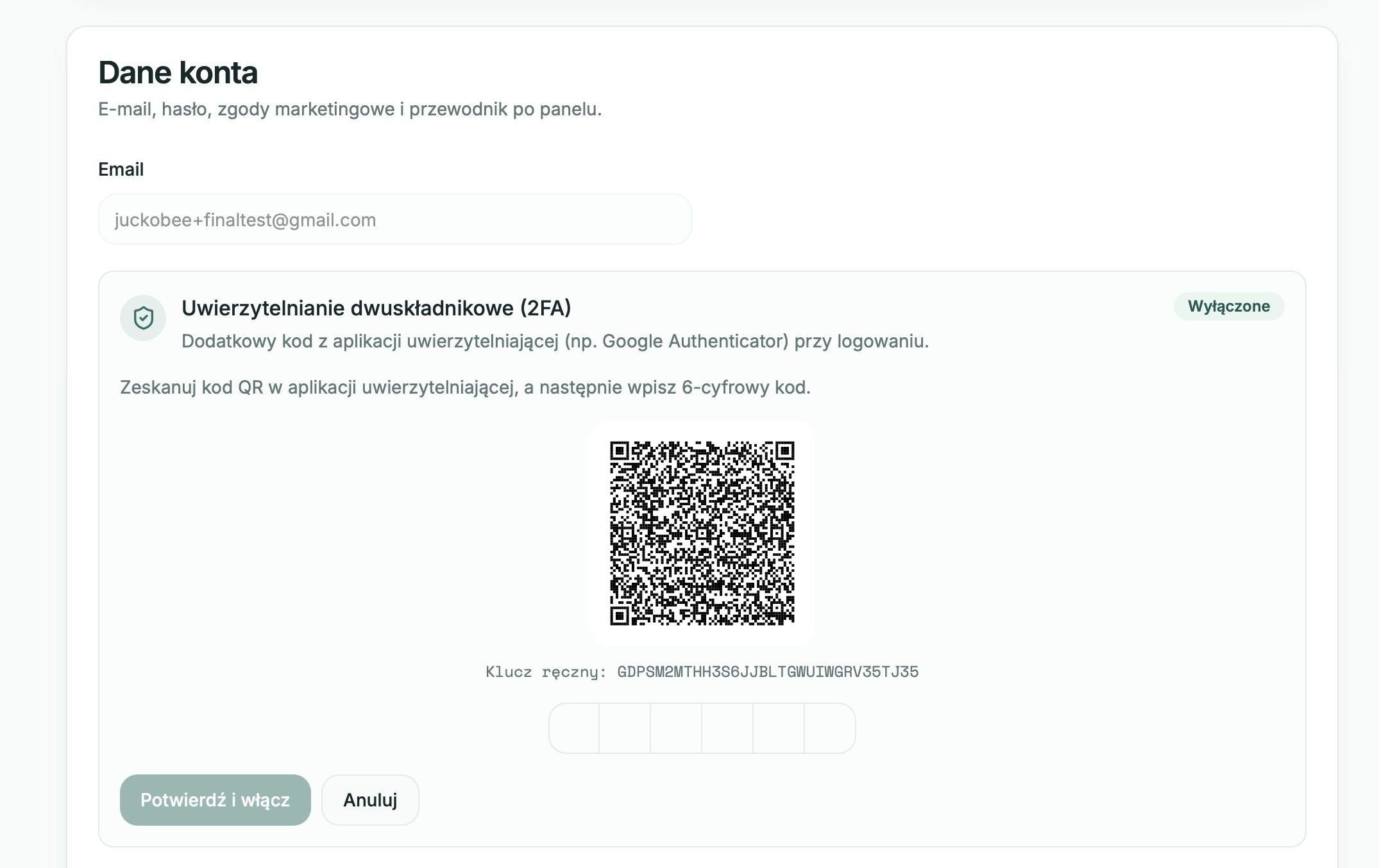
Go to your profile and find the two-factor authentication section. Turn on 2FA, scan the QR code in your authenticator app or enter the secret key manually.
Then enter the 6-digit code from the authenticator app and confirm. Once confirmed, 2FA starts protecting your account.
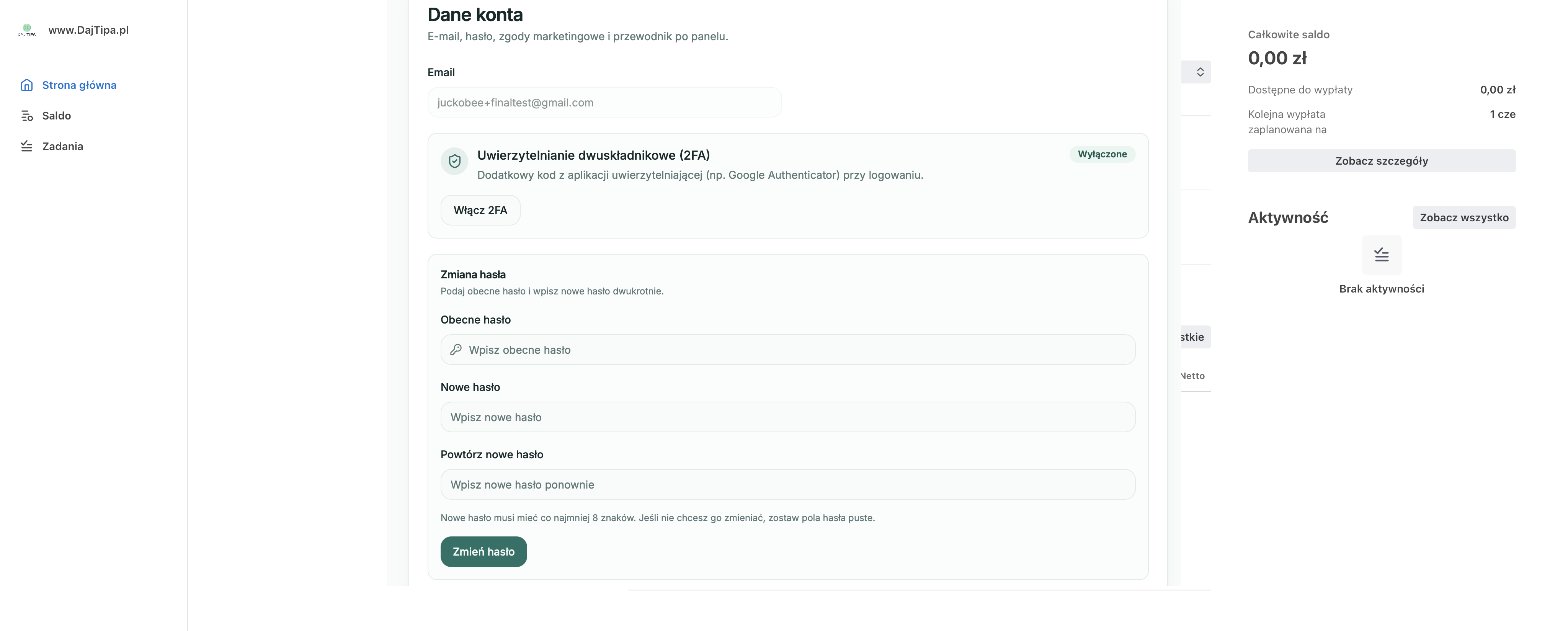
The account details section lets you turn on 2FA and change your password from the profile.
During 2FA setup, scan the QR code in an authenticator app and confirm with a one-time code.
Logging in with 2FA
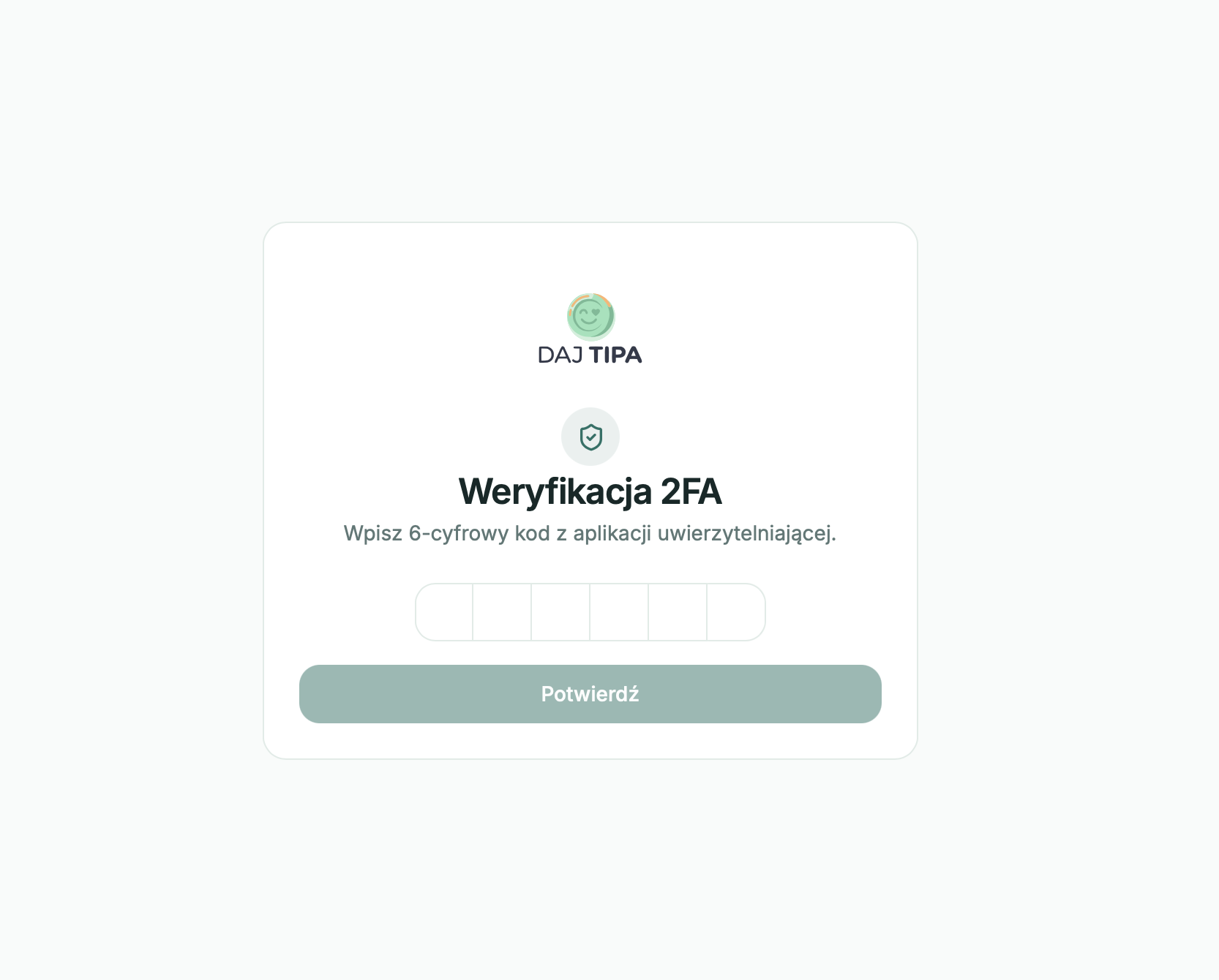
First enter your email and password. Then the app asks for the current 6-digit code from your authenticator app.
Codes change every few seconds, so it is best to enter the code as soon as it appears.
After entering your password, the app asks for the 6-digit code from your authenticator app.
Turning it off and fixing problems
To turn off 2FA, go back to your profile, choose disable 2FA and confirm with the current code.
If a code is rejected, check that your phone uses automatic time sync. If you lose access to the authenticator app, contact support and be ready to confirm your identity by email.
Profile setup
Managing your profile
05
Your profile controls what guests see on your tipping page and how the app stores your basic account details.
In this article
Where to find settings
Photo and personal details
Phone number
Tip amounts and link
Where to find settings
Click your name or avatar in the app menu and choose profile. You can also go directly to /profile in the app.
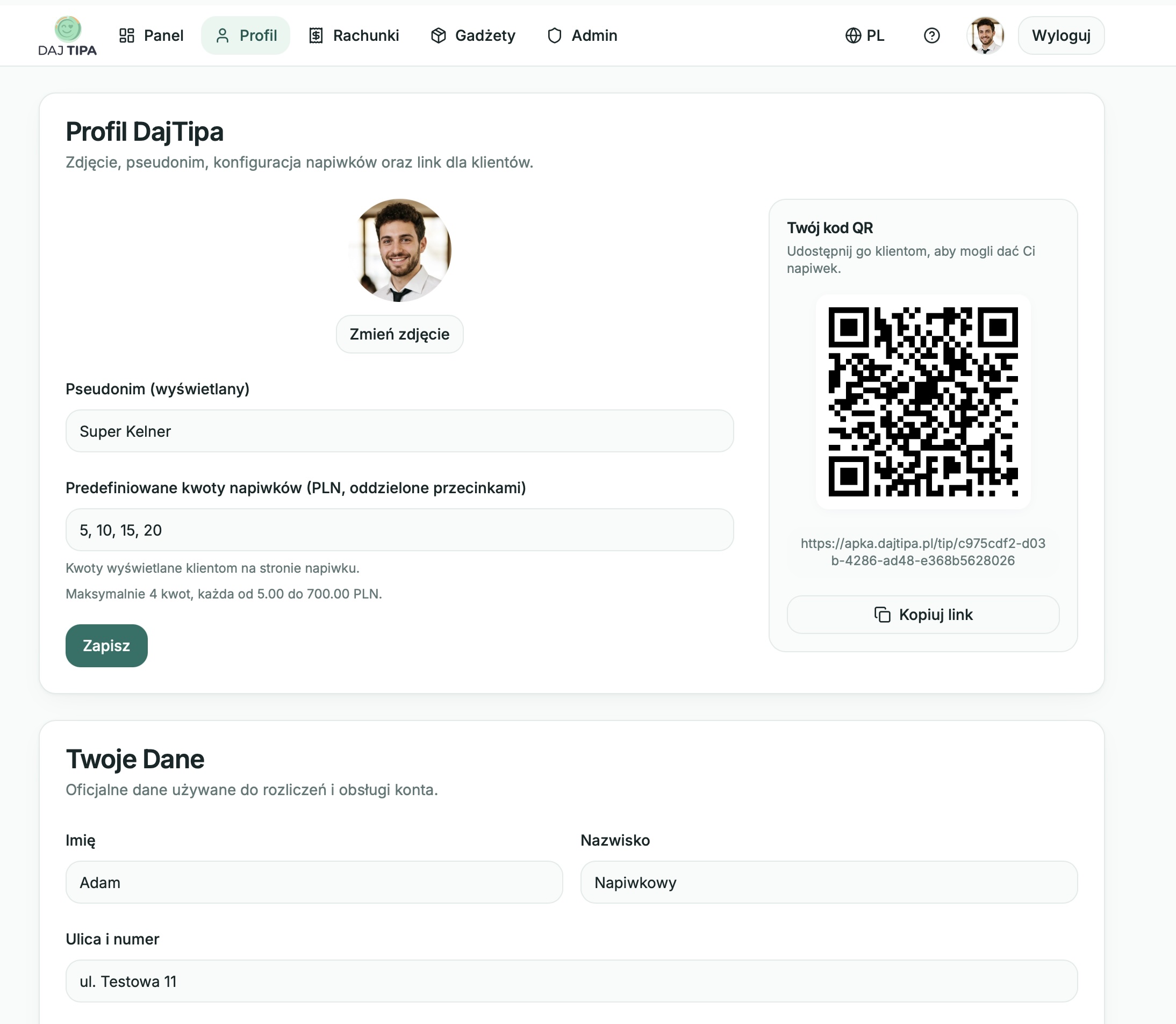
This is where you edit public details, billing details, photo, phone number, tip amounts, Stripe, 2FA, language, link and QR code.
Photo and personal details
Your profile photo appears on the public tipping page. A clear square JPG or PNG works best.
Display name is public. First name, last name and address are used for billing and invoices, and are not shown to guests.
The profile brings together guest-facing details, suggested tip amounts and quick access to the personal QR code.
Phone number
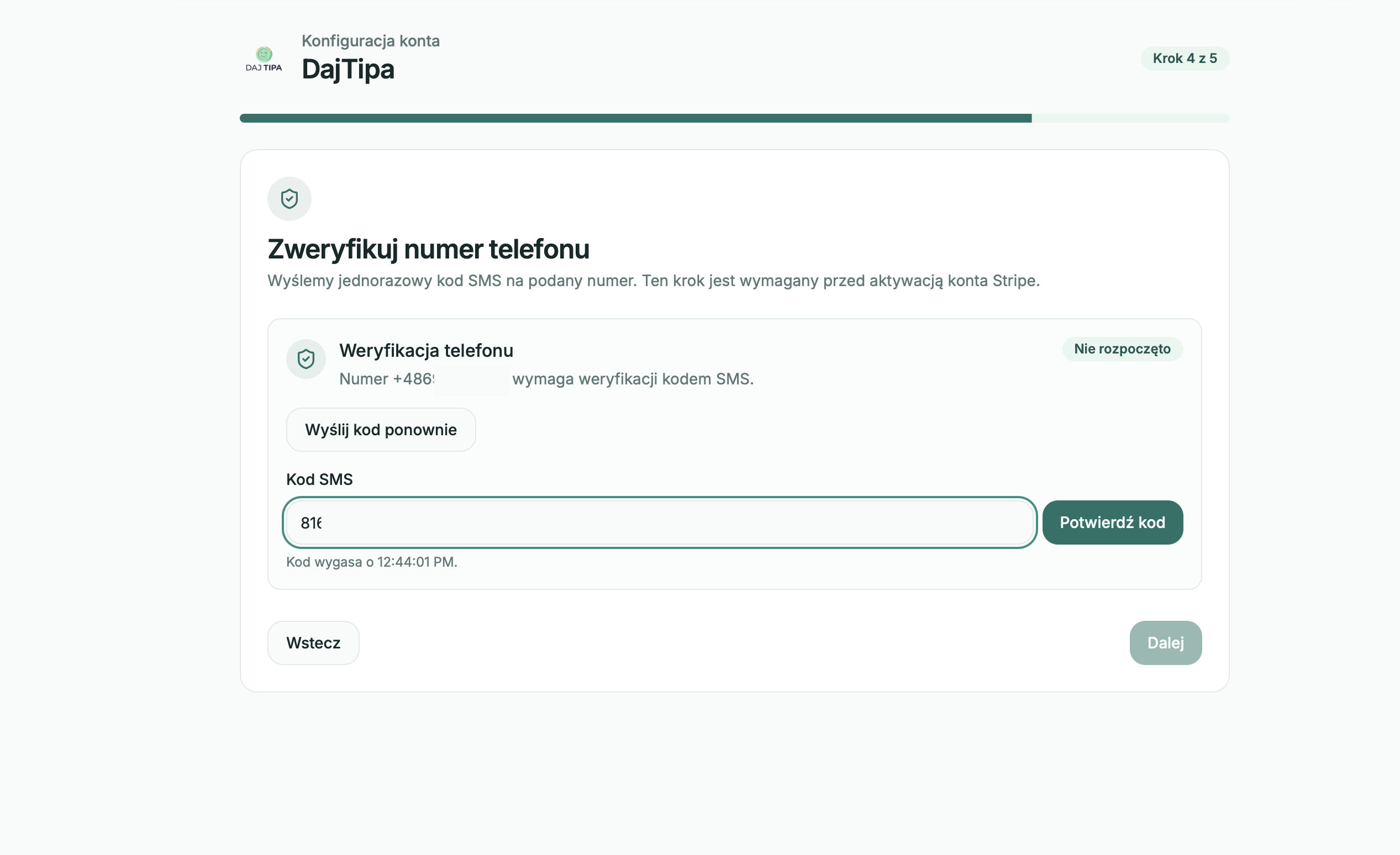
A verified phone number may be required for some platform features. Choose the country code, enter the phone number, send the SMS code and confirm it in the app.
The phone number is stored on your account. It does not appear on the public tipping page.
Tip amounts and link
In your profile, you set the suggested tip amounts guests see. You can prepare up to four amounts in PLN, and guests can still enter their own amount.
This is also where you can check your tipping page link, view your QR code and open detailed payment settings.
Profile setup
Onboarding
06
Onboarding guides new users through the key settings needed before accepting tips.
In this article
When onboarding starts
Details, photo and phone
Tip amounts and Stripe
Finishing and resuming
When onboarding starts
Onboarding starts automatically after your first login and email confirmation. Its purpose is to prepare your profile for accepting tips.
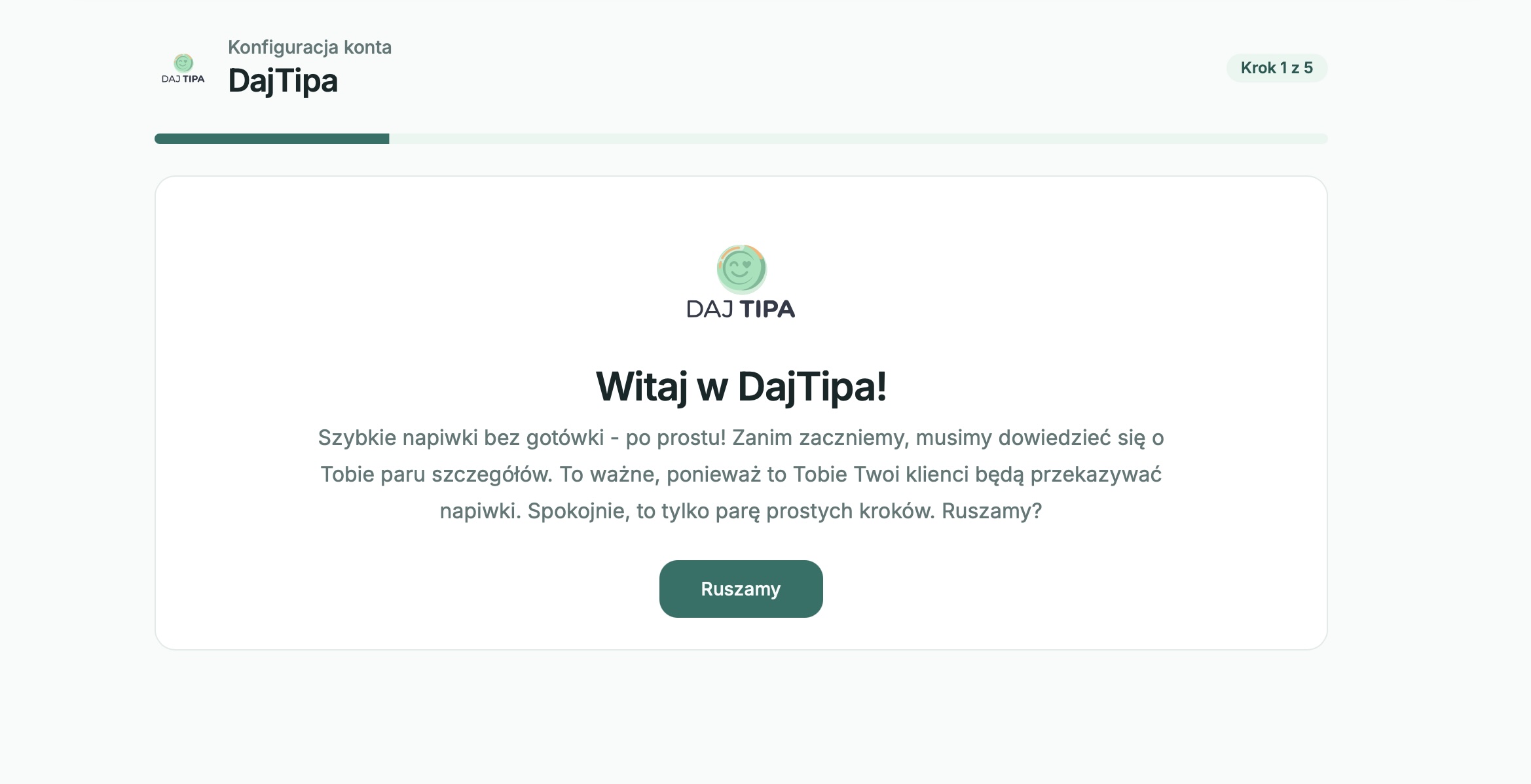
A progress indicator at the top shows how many steps are left.
The first screen explains that setup prepares the account for accepting tips.
Details, photo and phone
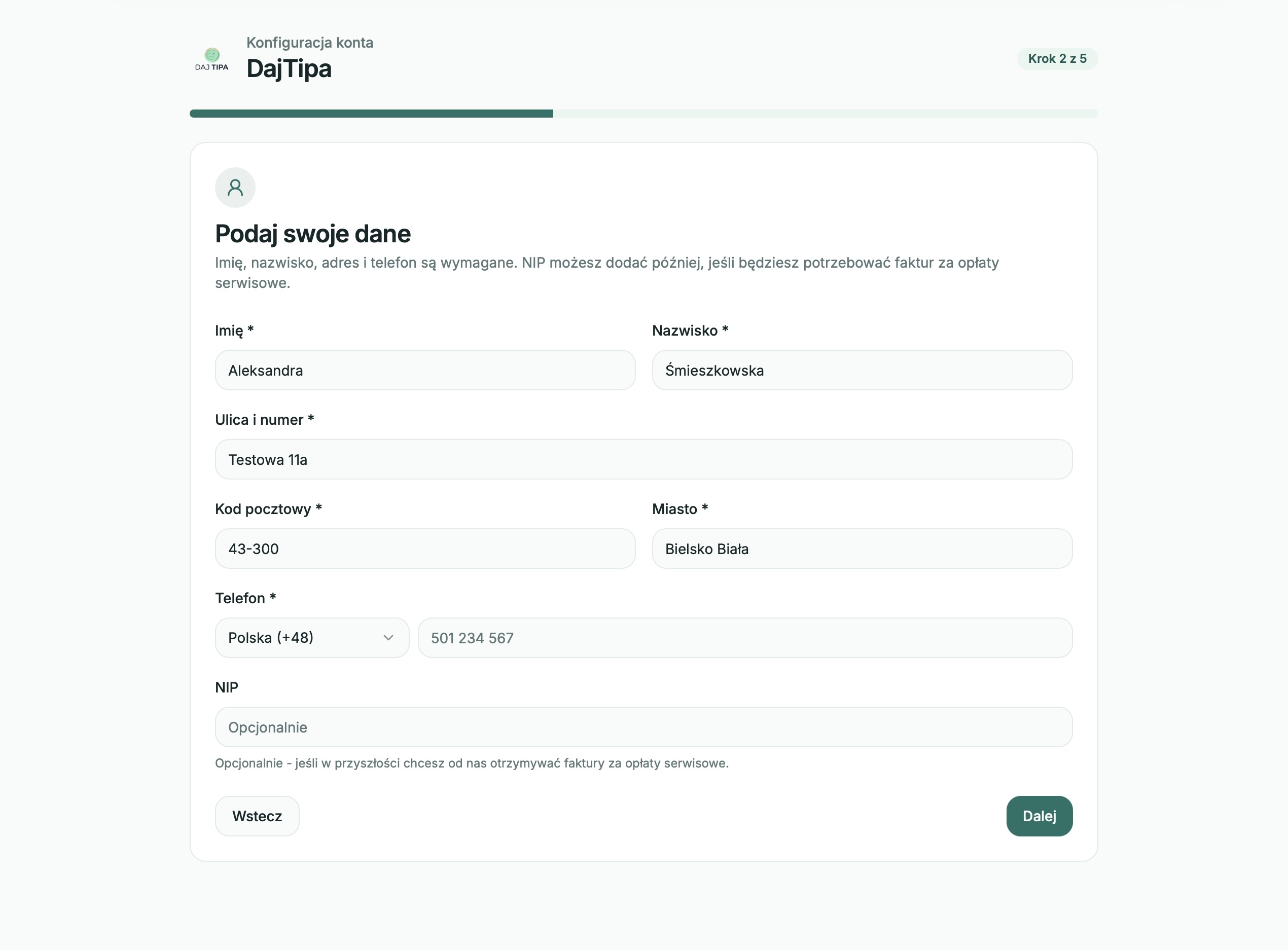
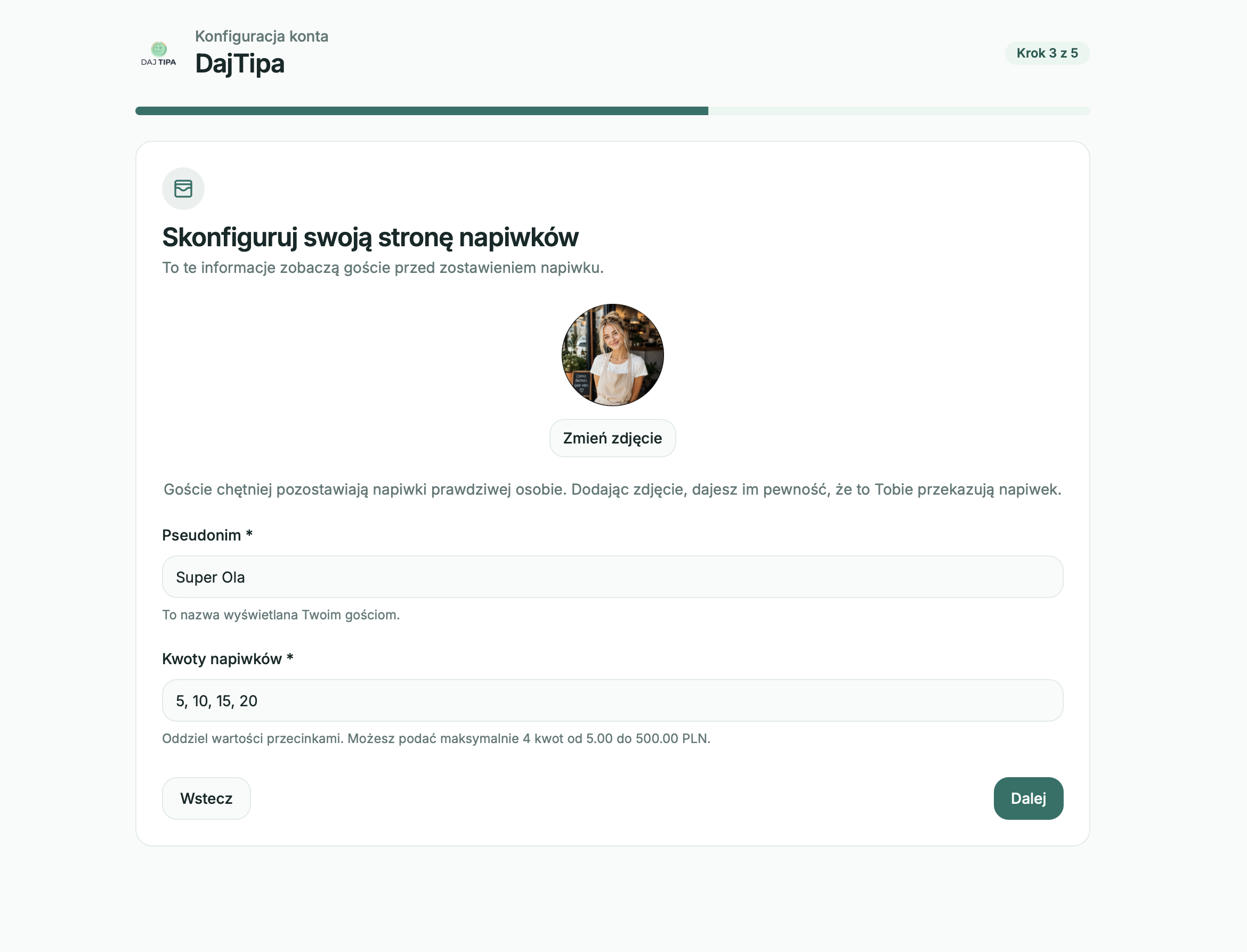
First you enter your display name, first name, last name and address needed for invoices. Then you can add a photo that helps guests recognize the right person.
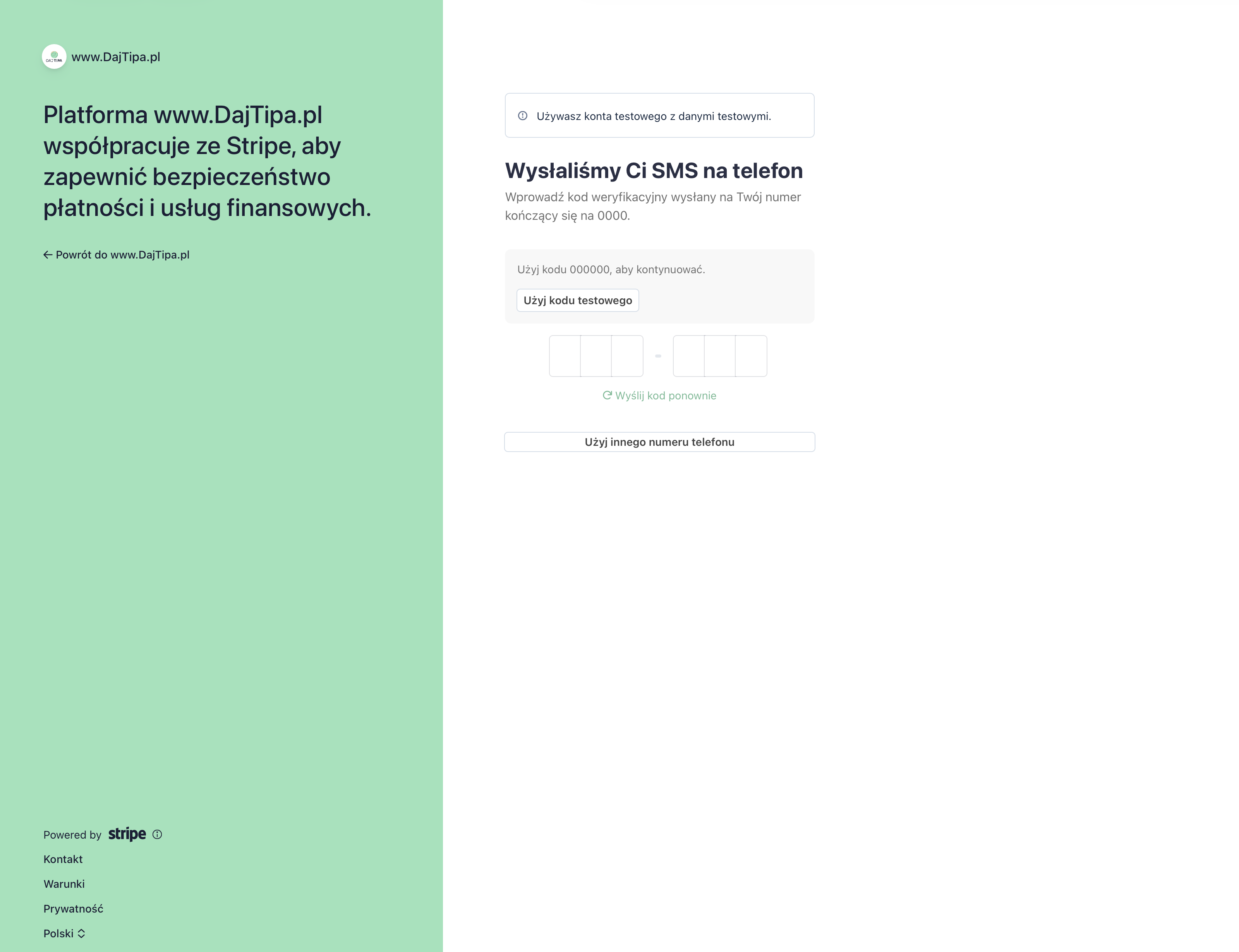
The next step is phone verification. Enter your number, receive an SMS code and confirm it in the app.
Billing details and phone number are collected early, before payout and verification setup.
The SMS code confirms the phone number before the user continues account and Stripe setup.
Tip amounts and Stripe
Next, you set suggested tip amounts. You can keep the default values or change them to match your work.
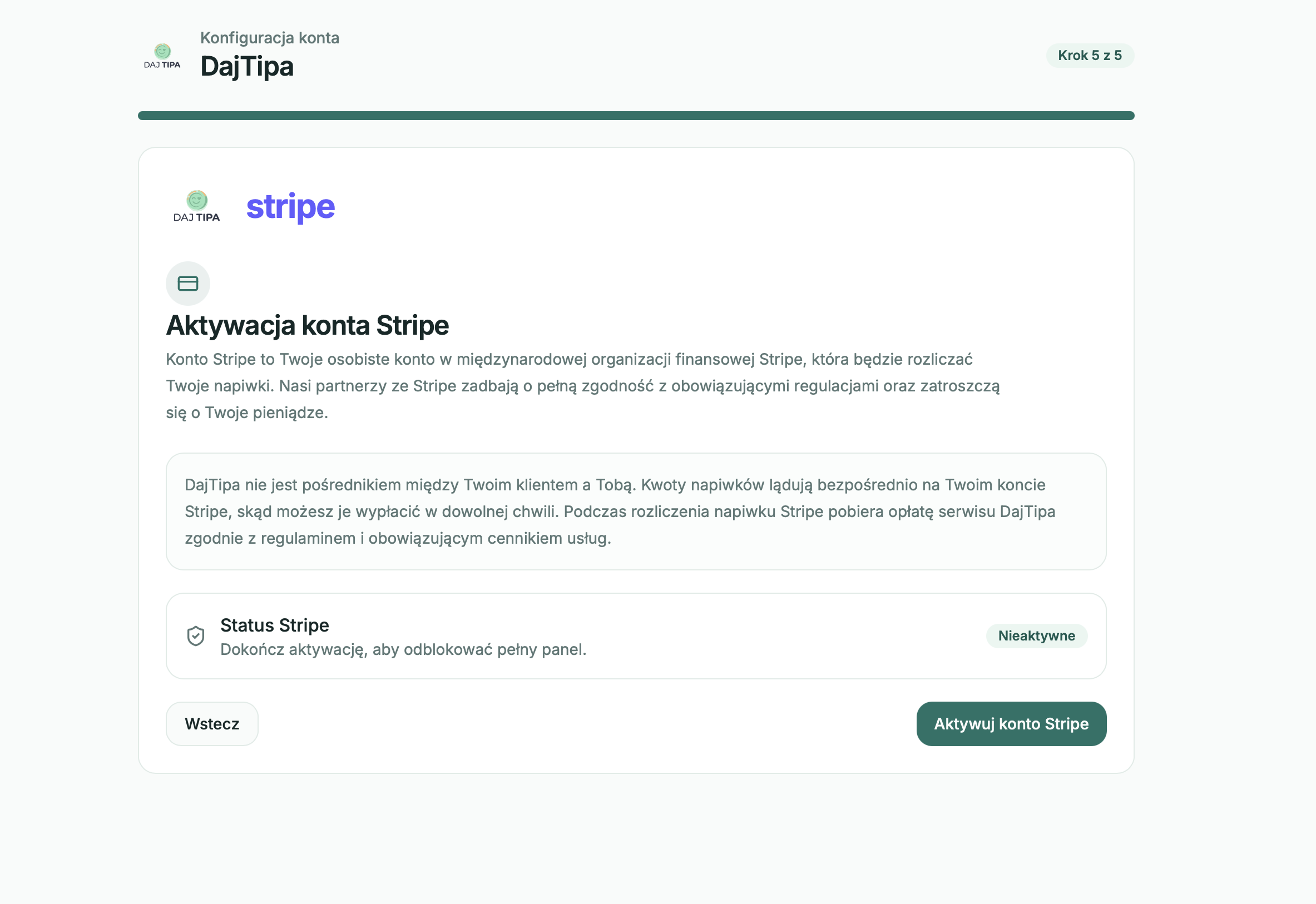
Connecting Stripe is required to receive money. If you do not finish this step right away, you can return to it later in your profile.
This step sets the photo, display name and suggested amounts shown to guests on the tipping page.
The final onboarding step leads to Stripe activation, which unlocks tip payouts.
Finishing and resuming
After setup, you land on the dashboard. A short tour points out the main areas, such as stats, QR code, tip history and menu links.
If you close the app during onboarding, the next login returns you to the step where you stopped.
Profile setup
Connecting Stripe
07
Stripe Connect handles payments, verification and tip payouts to your bank account.
In this article
Why Stripe Connect is needed
Starting the connection
Information Stripe may ask for
Status and payouts
Why Stripe Connect is needed
DajTipa uses Stripe Connect to send tips to the right person. Stripe collects the payment, DajTipa applies the service fee and the net amount is paid out according to Stripe's payout schedule.
DajTipa does not store your bank details. You enter financial information in Stripe's secure form.
Starting the connection
You can start the connection from your profile or from the Stripe step during onboarding. Click the Stripe connection button, and the app sends you to Stripe's form.
After finishing, you return to DajTipa, where you can see the current account status.
DajTipa sends the user to Stripe to securely configure the payout account.
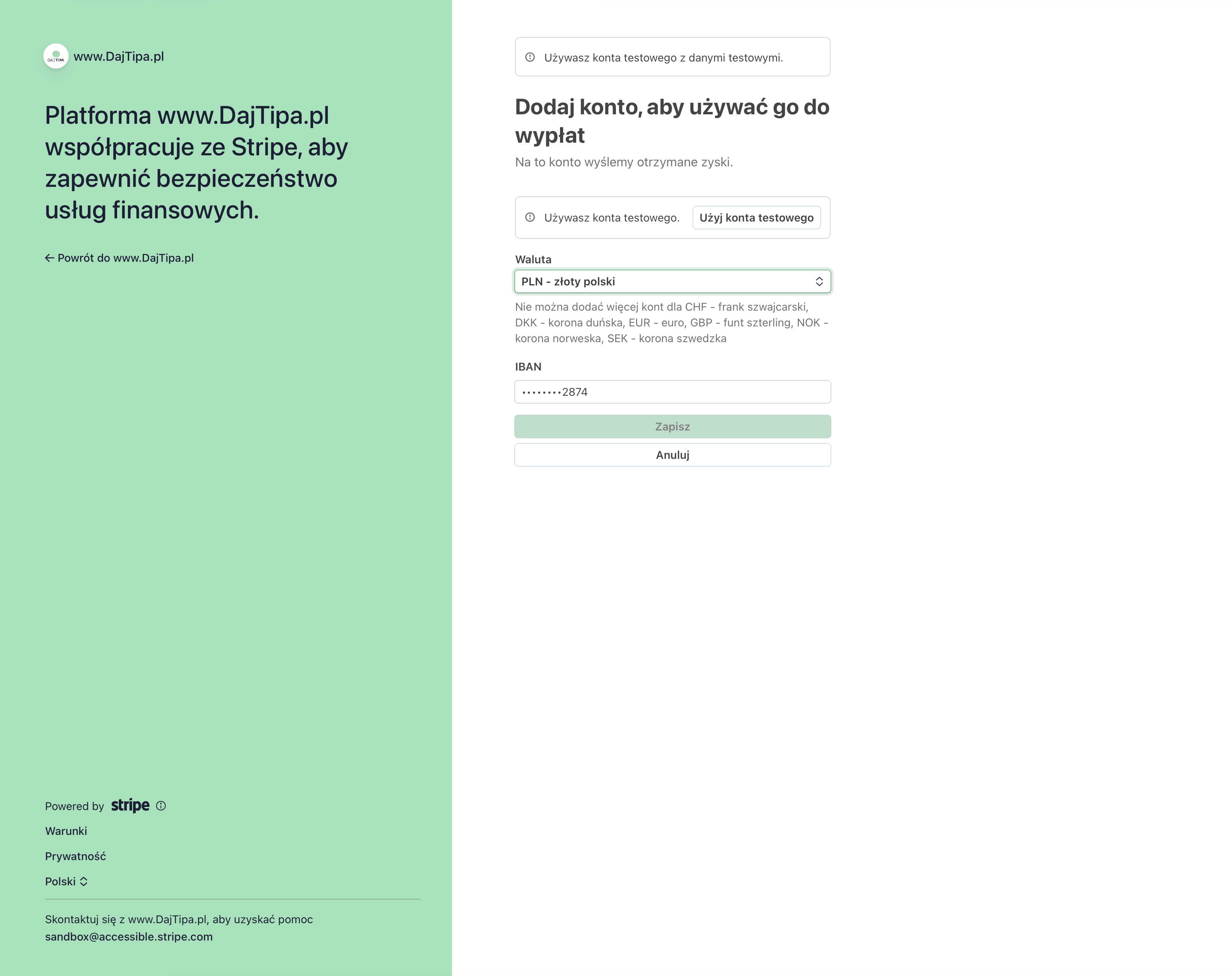
In Stripe, the user selects the currency and enters the bank account used for payouts.
Information Stripe may ask for
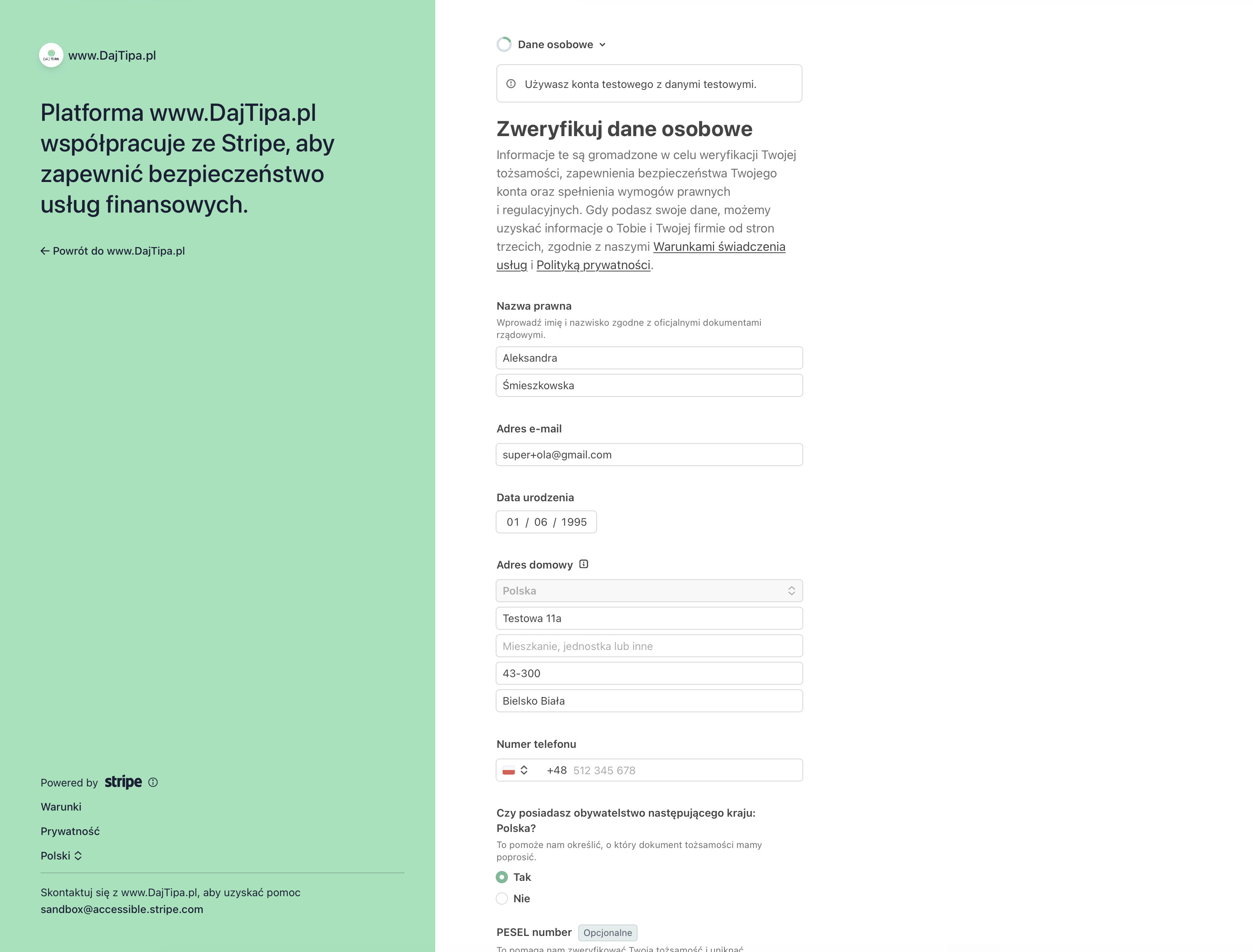
Stripe may ask for your email address, full legal name, date of birth, home address, identity document, bank account number and business type.
If you are not registering as a company, you usually choose individual. If Stripe asks for more documents, add them in the Stripe dashboard.
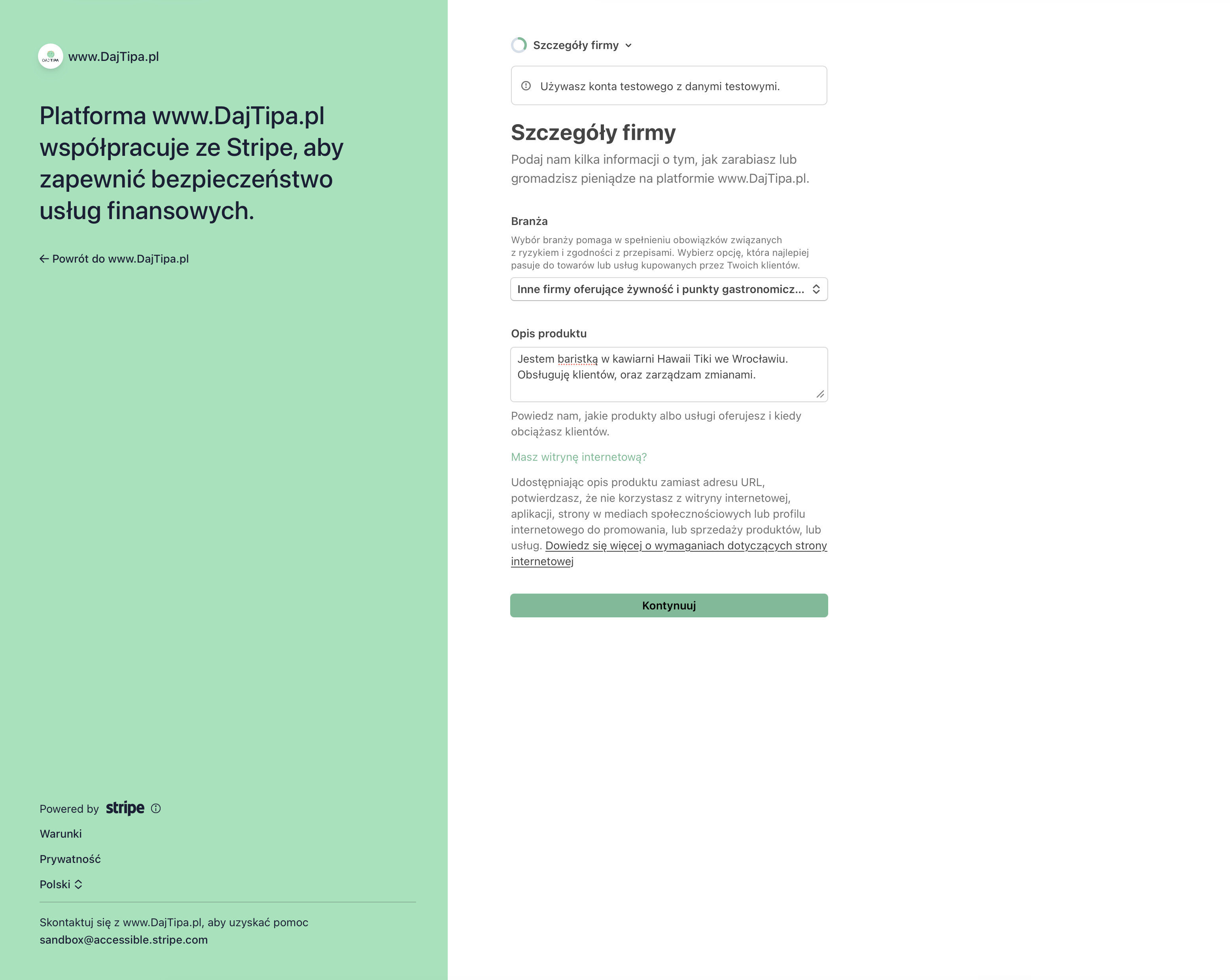
Stripe asks for industry and product details to meet safety and compliance requirements.
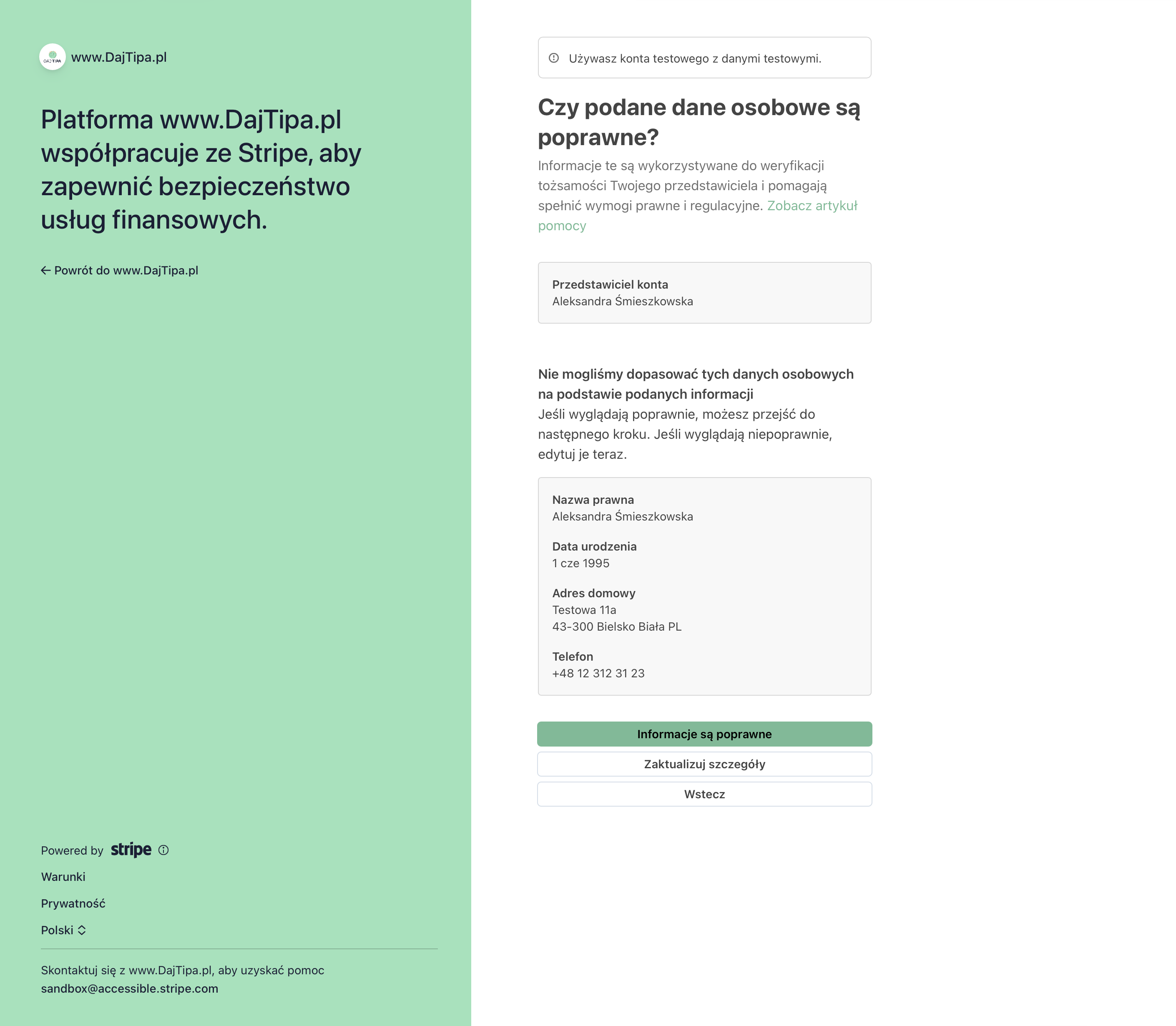
Personal details are used by Stripe to verify the account owner's identity.
Before document upload, Stripe may ask the user to confirm that their personal details are correct.
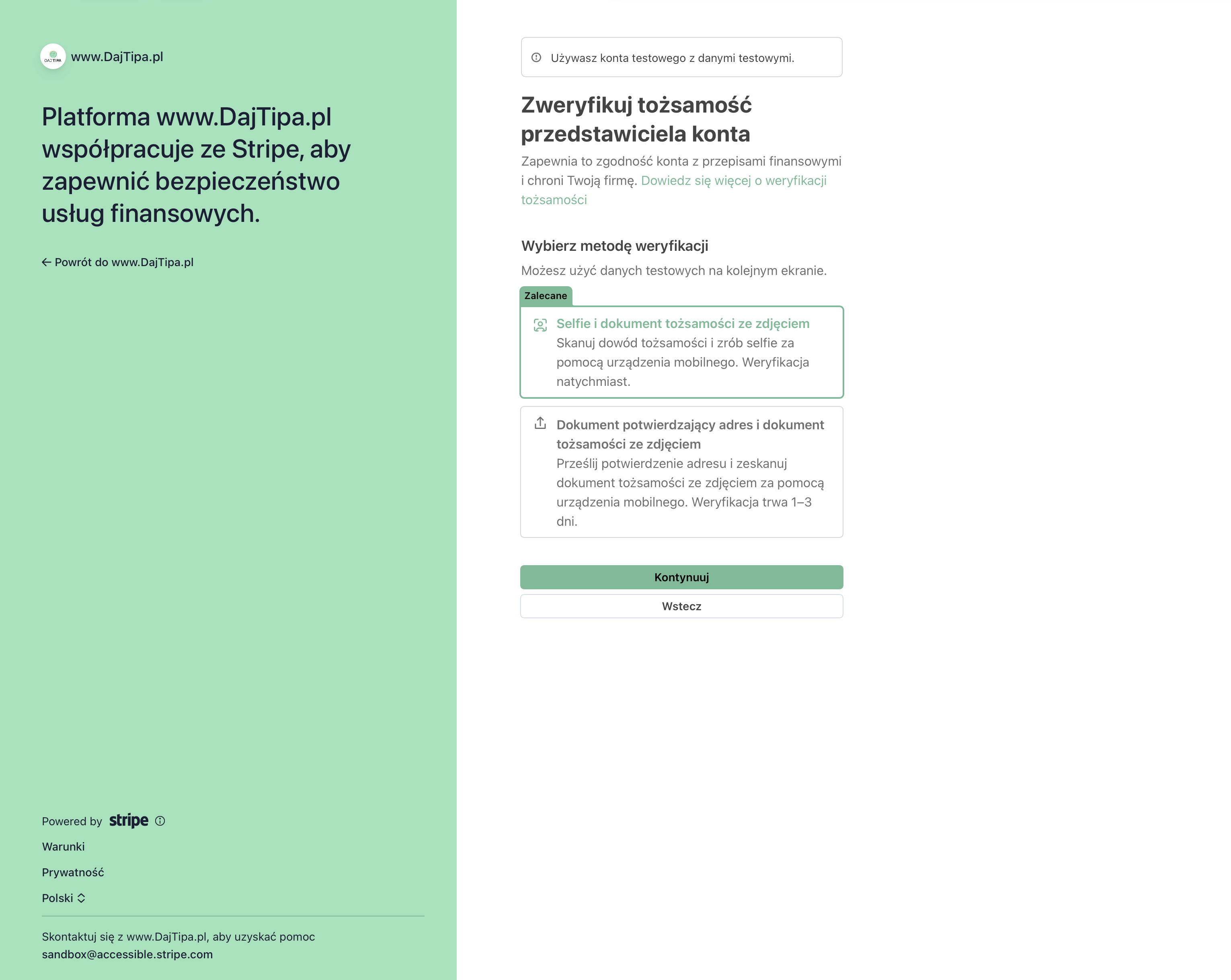
Stripe offers verification with a selfie and identity document, or an alternative document-based method.
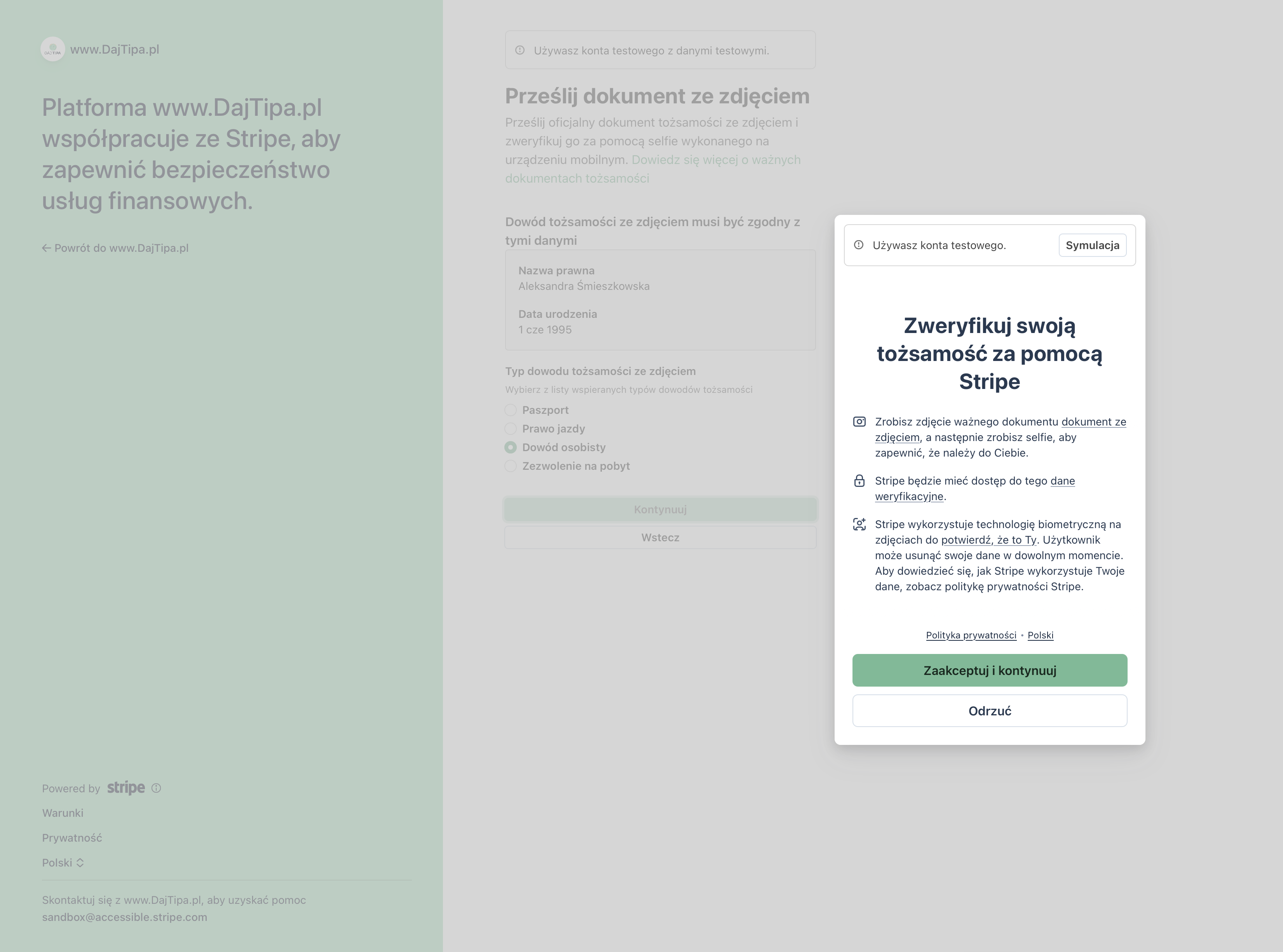
Before scanning a document, Stripe explains what data is used during identity verification.
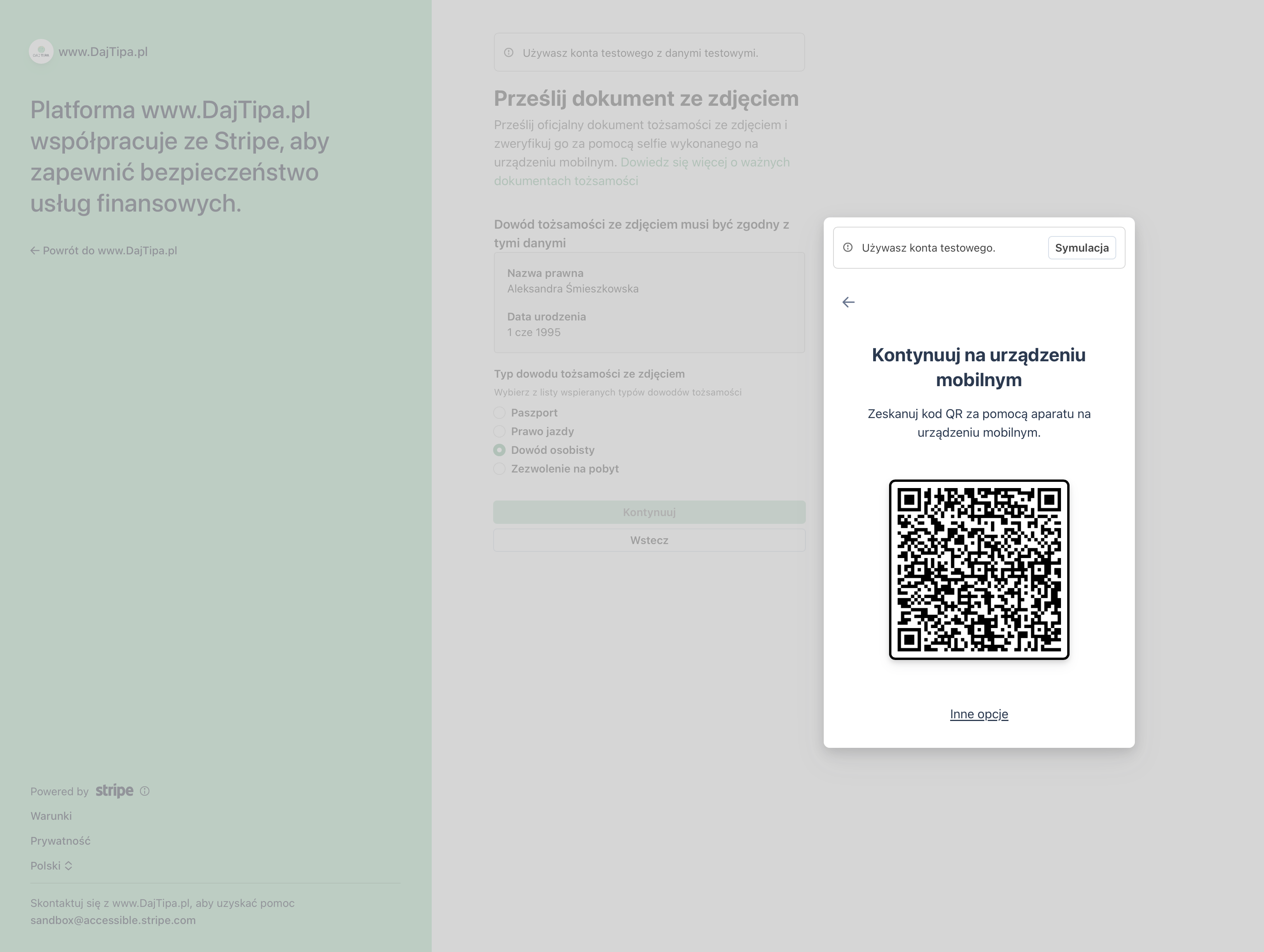
Part of document verification happens on a phone, so Stripe shows a QR code to continue.
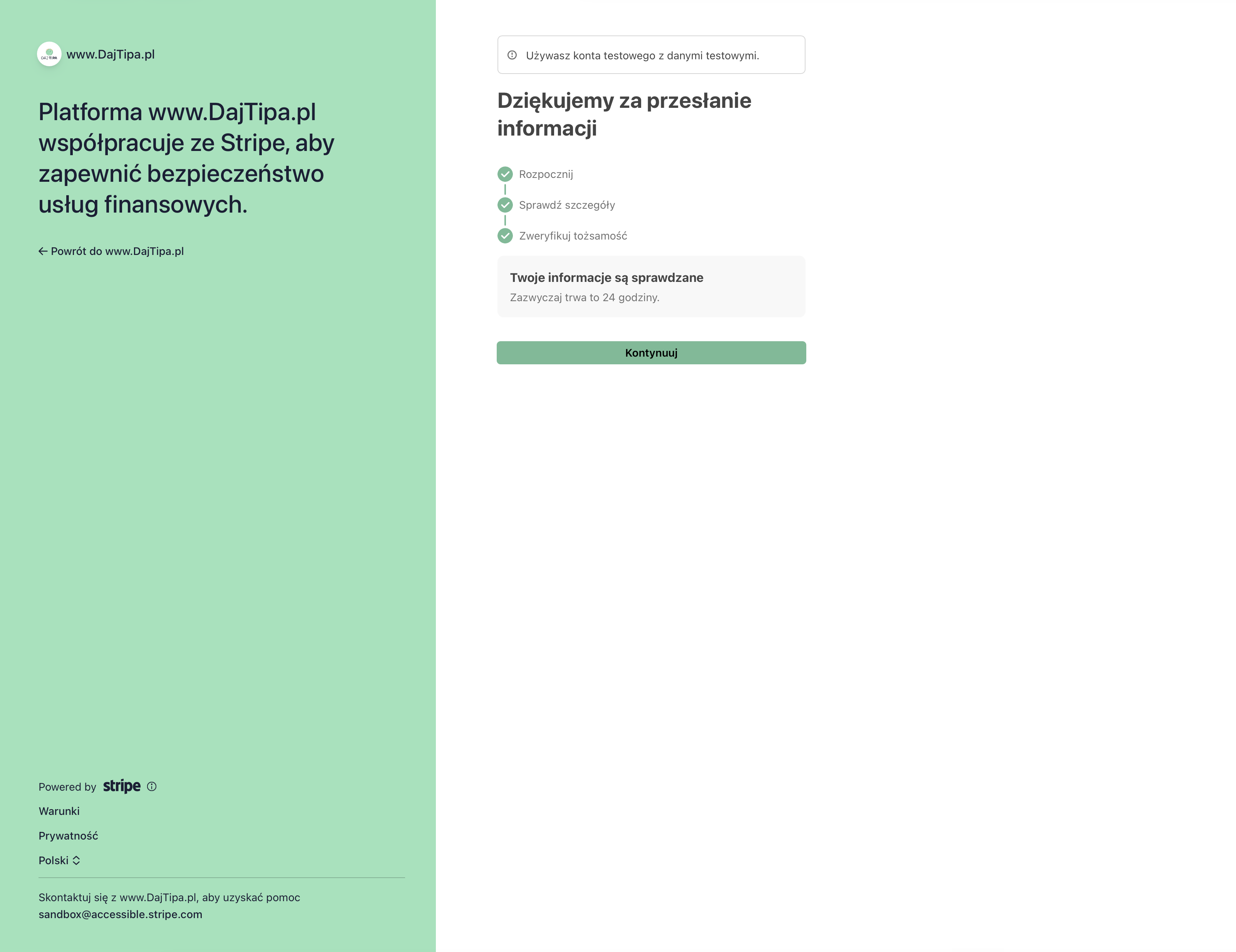
After the information is submitted, Stripe reviews the details. This usually takes up to 24 hours.
Status and payouts
In your profile you can see whether the account is not connected, pending verification, payouts enabled or payouts disabled.
Payouts arrive in your bank account according to Stripe's standard schedule, usually within a few business days. You can check payout history in the Stripe Express dashboard.
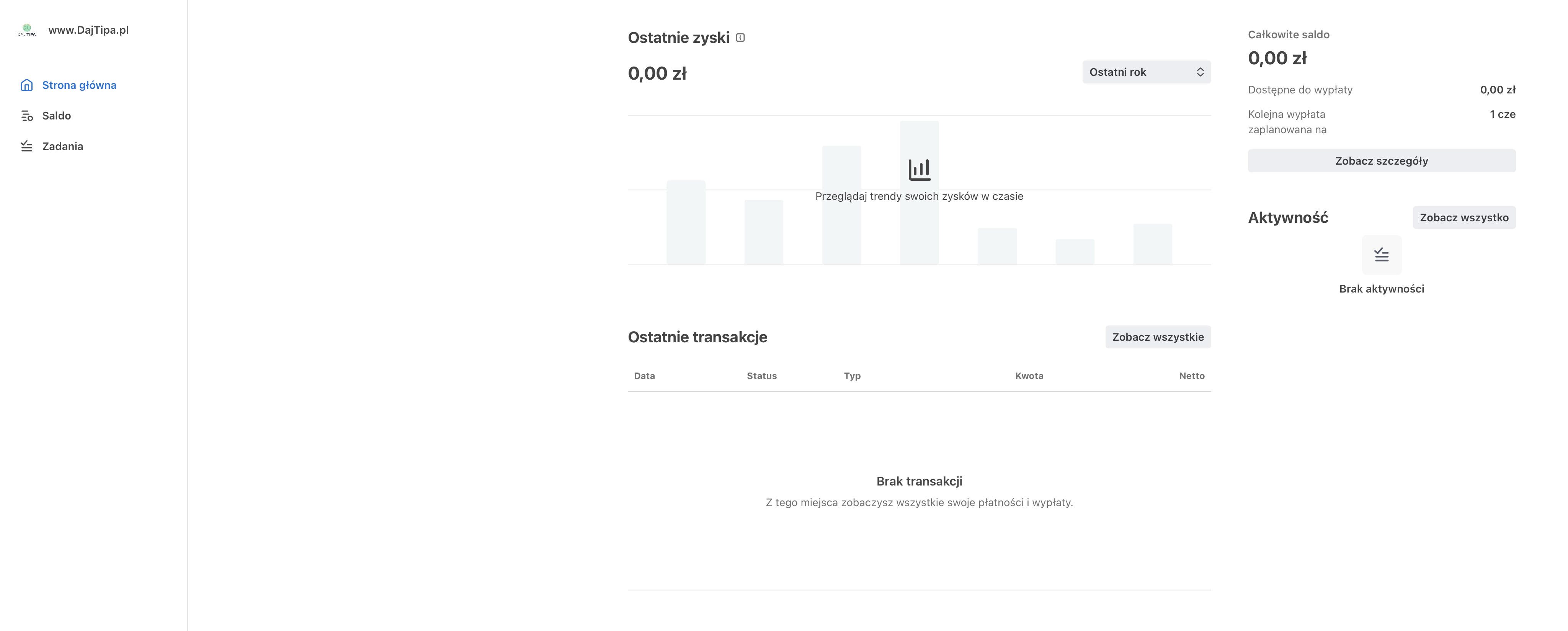
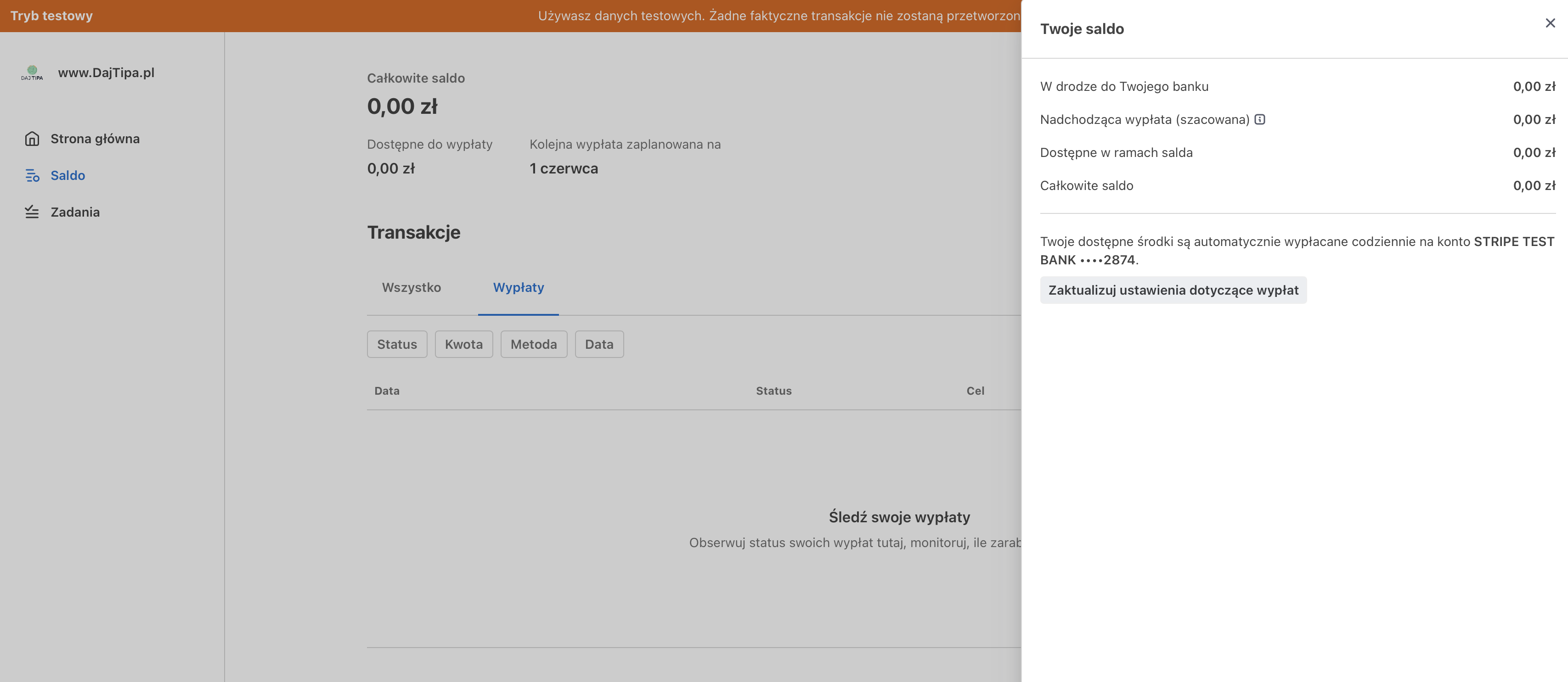
The Stripe dashboard shows balance, recent transactions, activity and the scheduled payout date.
Balance details show available funds and the bank account used for payouts.
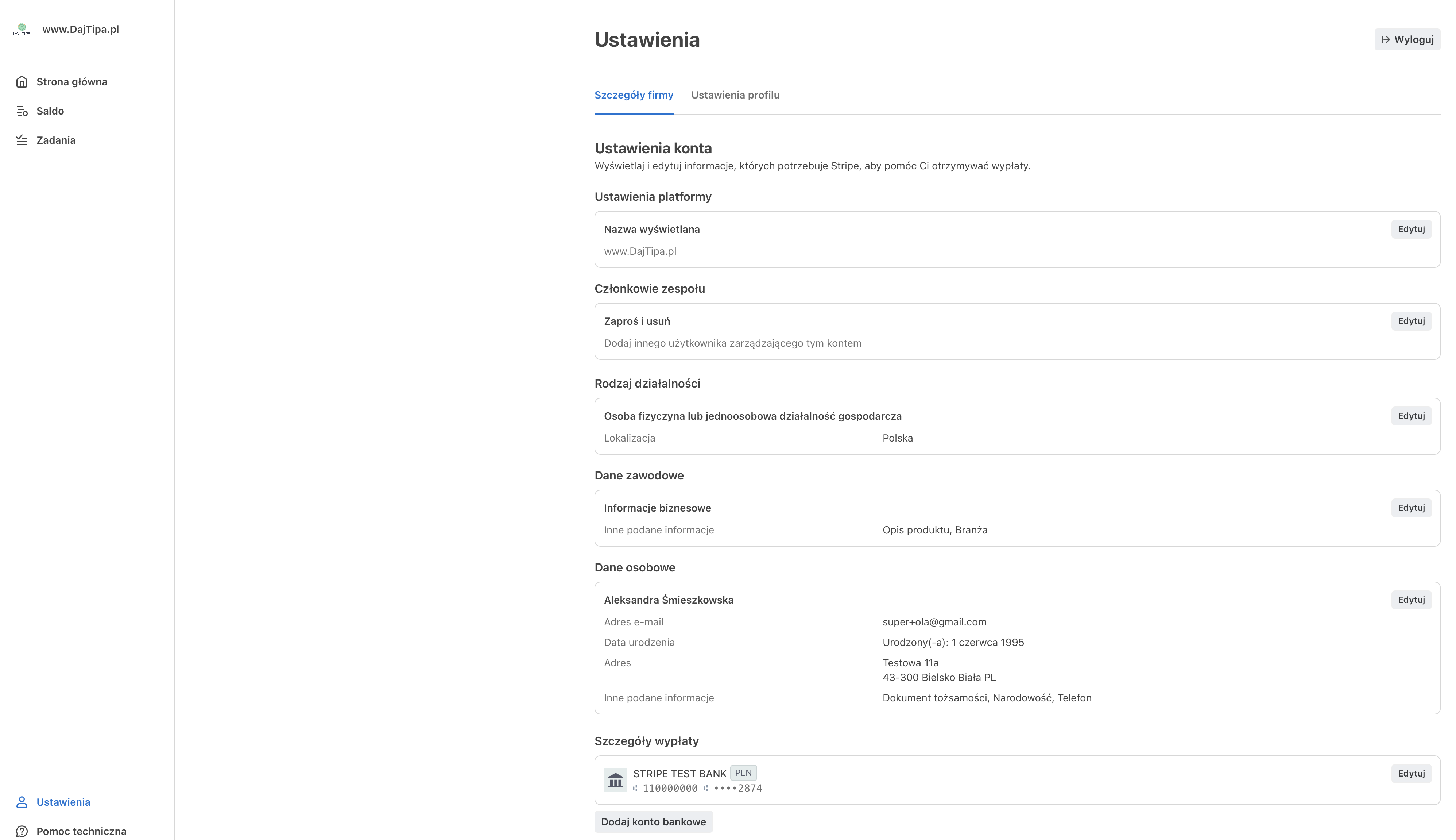
Stripe Express settings include business details, personal details and payout information.
Everyday use
Dashboard
08
The dashboard is the main screen of the app. It shows your current tip activity, work status and quick QR access.
In this article
Opening the dashboard
Active shift and stats
QR code
History and statuses
Opening the dashboard
After login, the app opens the dashboard automatically. You can also return to it at any time from the side menu.
This is the screen you will use most often during work because it brings the key information together.
Active shift and stats
If you are checked in to an active venue shift, a banner appears at the top with the venue name, shift start time and a button to stop the shift.
Stats cards show the total amount of completed tips and the number of tips. They include direct tips and your share of venue tips.
QR code
A small QR code appears near the top of the dashboard. Clicking it opens a large view that is easy to show to a guest on your phone.
The code area also shows the current mode. Individual means tips go directly to you. Venue means an active shift is running and tips follow the venue's sharing rules.
History and statuses
History shows recent direct and venue tip entries. Each entry can include amount, status, date, transaction ID, venue name, amount breakdown and a message from the guest.
The main statuses are pending, completed, failed and refunded. Only completed tips are included in totals.
History shows recent tips, amounts, statuses and details needed when checking transactions.
Everyday use
Tips received
09
You can review tips in the dashboard and in checks and receipts, where full financial records are shown.
In this article
Where to view tips
Direct tips
Venue tips
Statuses, filtering and messages
Where to view tips
The dashboard gives a quick view of recent tips and running totals. It is the best place for everyday checking during work.
Checks and receipts show the full financial record of distributions, fees and billing documents.
The quick history view helps users check recent tips without opening full settlement records.
Direct tips
A direct tip happens when a guest scans your personal QR code or opens your link and pays directly to you.
These entries appear in history without an extra venue label.
Venue tips
A venue tip happens during an active shift when a guest tips the venue. The amount is split between staff according to the venue's configured rules.
In history you see the gross amount, fee, net amount and allocation percentage. The entry has a venue label and the venue name.
Statuses, filtering and messages
Pending means the payment is still processing. Completed means the payment is confirmed. Failed means the payment did not go through. Refunded means the payment was reversed.
Dashboard history is sorted newest first. If you need date ranges or documents, go to checks and receipts. Guest messages are read-only and stored with the transaction record.
Everyday use
QR code and tipping page link
10
Every user has a personal tipping page and QR code that take the guest straight to payment.
In this article
Where to find the code and link
Large QR view
Sharing the link
What guests see and when to regenerate
Where to find the code and link
You can find the QR code in the dashboard and in your profile. In the profile you can also see the full tipping page address, copy the link, preview the code and open the page in a new tab.
The address leads to a public mobile page where the guest can leave a tip.
The profile shows the personal QR code, tipping page link and one-click copy button.
Large QR view
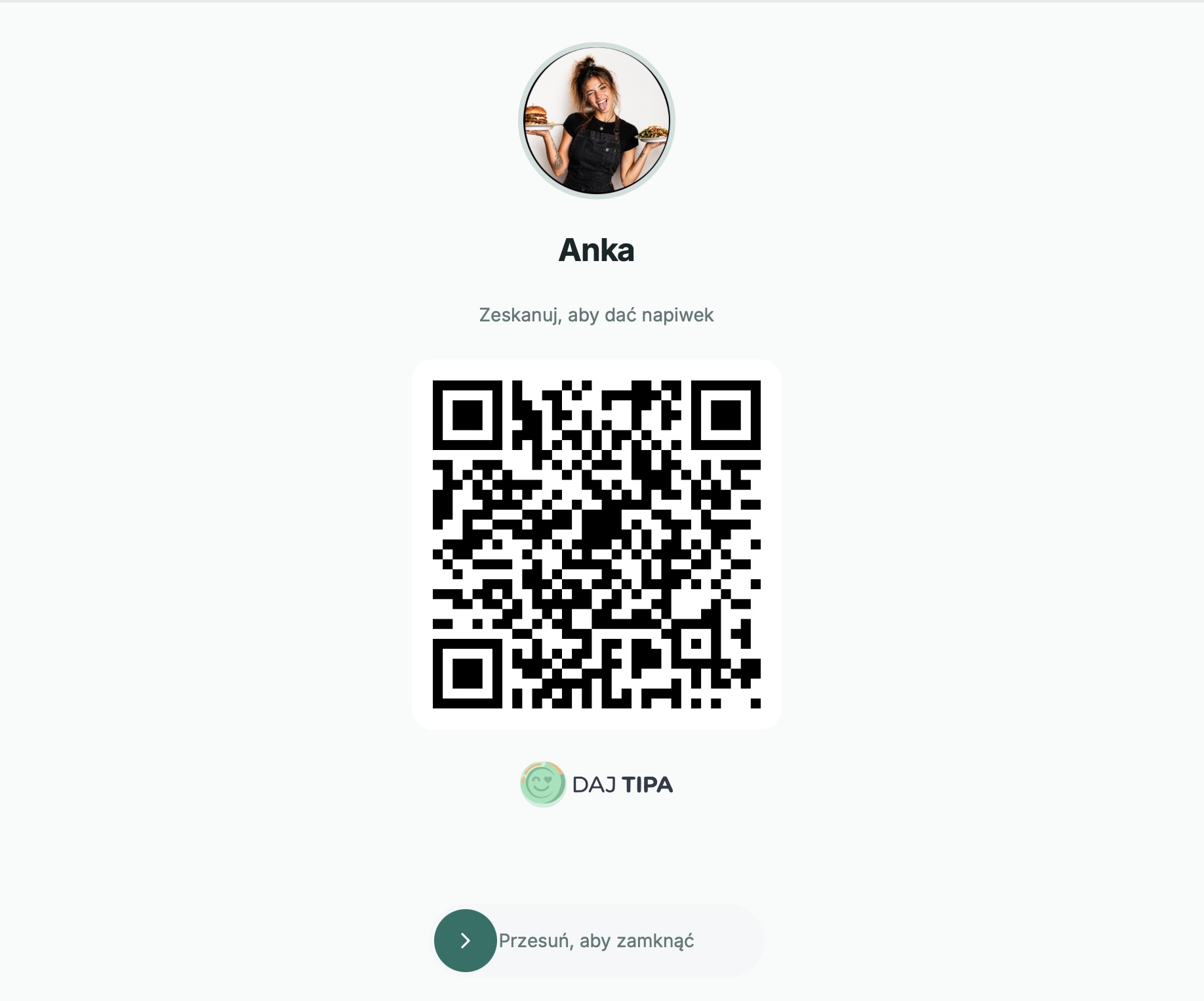
Clicking the code in the dashboard opens a large view made for showing to guests. It shows your avatar, display name and a large scannable QR code.
If you are on an active venue shift, the view can also show the venue QR code, so the guest can choose the right way to tip.
The full-screen QR view is ready to show to a guest without printing materials.
Sharing the link
You can add the link to a social media bio, send it in a message, place it in an email signature or add it to your own website.
During in-person work, the fastest option is to show the code on your phone or use a printed card, sticker or stand.
What guests see and when to regenerate
Guests see your photo, name, suggested amounts, custom amount field, optional message and secure payment methods handled by Stripe.
The app lets you regenerate the QR code and tipping page link. After regeneration, older codes and links stop working, so update every printed or shared material where they were used.
The guest chooses an amount, can enter a custom value, add a message and accept required documents before payment.
Venues and Tip Jar
What Tip Jar is
11
Tip Jar is venue mode: a guest tips the whole team, and DajTipa splits the amount according to the venue settings.
In this article
Tip Jar in practice
Individual mode and venue mode
Individual account and venue manager
What every venue has
Tip Jar in practice
Tip Jar is a shared digital tipping pool for a restaurant, hotel, salon or other workplace. Instead of tipping one person, a guest can tip the team that is currently working.
DajTipa collects the guest payment, checks who is on an active shift and ready to receive tips, splits the amount using the venue's configured algorithm and sends each share to the relevant Stripe account.
Individual mode and venue mode
In individual mode, tips from your personal QR code go directly to you. In venue mode, the tip is split between people on an active shift according to the Tip Jar rules.
The dashboard shows the current mode beside the QR widget. When you are checked in to a venue shift, the app shows an active-shift banner and explains that venue tips follow the venue's sharing rules.
Dashboard history shows direct tips and shares received from venue tips.
Individual account and venue manager
An individual account can receive personal tips and join venues by invitation. It cannot create new venues.
A venue manager account can create venues and manage Tip Jars. During onboarding, a venue manager can skip Stripe at first if they only need to configure the venue and do not yet need to receive personal shares from shifts.
The account type controls whether a user can create venues and manage Tip Jars.
What every venue has
Each venue has its own public tipping page and QR code, member list, roles, Tip Jar settings, shifts, reports and invitations.
Tip Jar can be enabled or disabled at platform level. When it is disabled, the Venues and Invitations sections disappear from the app, and venue tipping pages are unavailable.
Venues and Tip Jar
Creating and launching a venue
12
A new venue needs setup, platform approval and at least one active shift with a tip-ready member.
In this article
Setup order
Platform approval
Venue detail screen
Checklist before first use
Setup order
First choose a venue manager account, create the venue in Venues and fill in settings: name, address, photo, automatic shift end hours and shift end mode.
Then configure Tip Jar settings, choose the split algorithm, add any required weights, functional groups or referrer percentage, and request activation if the venue is still waiting for approval.
Platform approval
A new venue receives the Waiting for approval status. During this time you can prepare settings, but you cannot accept venue tips, run shifts, invite new members or remove members.
After a platform administrator makes a decision, the venue becomes active or inactive. An active venue can run shifts and accept tips if the Tip Jar configuration is valid and at least one tip-ready person is on shift.
Venue detail screen
Venue details are split into tabs: Members, Active shifts, QR Code, Reports, Invitations and Settings. In Tip Jar settings you choose the split algorithm and configure groups, weights or the referrer share.
The top of the page also shows the tipping-page status. Treat it as your readiness checklist: if it shows a problem, follow the suggested tab and fix the configuration before sharing the QR code with guests.
Checklist before first use
Before showing the QR code to guests, confirm that the venue is Active, the tipping page is ready, at least one member is on an active shift and every person expected to receive tips is tip-ready.
Also confirm that the selected algorithm matches the team's rules, the QR code opens the venue page and a test payment can reach the Stripe payment form.
Venues and Tip Jar
Roles, invitations and team readiness
13
Venues use member roles, email invitations and a tip-readiness status shown for each team member.
In this article
Venue roles
Inviting members
What a new member must do
Tip readiness
Venue roles
A venue admin has full control over settings, members, roles, Tip Jar, shifts, invitations and reports. The person who creates the venue becomes its first admin.
A shift manager can handle day-to-day operations: manage shifts, invite members and review reports. A member can start and end their own shift when the venue settings allow it, and can receive venue tip shares.
Inviting members
Admins and shift managers invite members by email after the venue is active. The invitation assigns a role: member, shift manager or venue admin.
Each invitation is valid for a defined number of days. The invitee must log in with the same email address that received the invitation. They can accept through the email link or from the Invitations section in the app.
What a new member must do
A new member should accept the invitation, complete onboarding, connect Stripe if they will receive venue shares and check in their profile that Stripe payouts and charges are enabled.
If the venue uses weights or functional groups, an admin must assign the right weight or group. Without that, the app may block shift start or exclude the member from distribution according to the algorithm rules.
Members who will receive payouts must complete Stripe setup.
Tip readiness
Tip-ready means the membership is active, the user's account is active, Stripe is connected and verified, payouts and charges are enabled, and the account is not blocked by risk controls.
Extra requirements depend on the algorithm: weight-based splitting requires a weight, and group-based algorithms require a functional group assignment. A user also cannot be on an active shift at another venue at the same time.
Stripe status affects whether a member can start a shift and receive venue tip shares.
Venues and Tip Jar
Venue shifts
14
A shift defines who is currently included in venue tip distributions.
In this article
Why shifts matter
Starting a shift
Ending and automatic closing
Daily operating routine
Why shifts matter
Shifts tell the app who is working right now and who should participate in the next venue tip split. Venue tips are split only between active-shift members who are tip-ready.
The venue tipping page is available to guests only when at least one tip-ready person is on an active shift.
Starting a shift
A shift can be started only in an active venue. In Members or Active shifts, find the person, check their readiness status and start the shift.
Managers can use start all shifts for people who meet the requirements. People who are not ready are skipped and need the listed issue fixed first.
Ending and automatic closing
A shift can be ended from the dashboard banner or from the venue page. A venue can allow every member to end their own shift or restrict shift ending to admins and shift managers.
A shift can close automatically after the number of hours set in venue settings. It can also be closed if the member loses tip readiness, for example because of a Stripe issue.
Daily operating routine
At the start of service, open Active shifts, review ready and not-ready people, start shifts, then check the tipping-page status and venue QR code.
During service, add people who join later and end shifts for people leaving early. At the end of the day, close all shifts and review Reports and tip history.
Venues and Tip Jar
Tip Jar split algorithms
15
A venue admin chooses whether tips are split equally, by weights, by functional groups or with a referrer share.
In this article
Equal split
Weight per person
Functional groups
Referrer share
Equal split
Equal split divides the tip evenly between every tip-ready person on an active shift. It is the simplest setup for teams where everyone present should receive the same share.
Example: with a 100 PLN tip and four ready people on shift, each person receives 25 PLN gross before fees.
Weight per person
In the weight algorithm, an admin assigns a weight to each person. Weights do not need to add up to 100 because the app normalizes them across people who are present on shift.
Example: if Anna has weight 2, Bartek has weight 1 and Celina has weight 1, a 120 PLN tip is split into 60 PLN, 30 PLN and 30 PLN gross.
Functional groups
In the group algorithm, the venue creates groups such as Service, Kitchen or Bar and assigns percentages to them. Group percentages must add up to 100, and members should be assigned to the right groups.
Example: if Service has 70%, Kitchen has 30%, and two Service members plus three Kitchen members are on shift, the tip is first split between groups and then each group share is split between people in that group.
Referrer share
Referrer mode is for venues that want the person serving the guest to receive a fixed percentage while the rest goes into the team pool. The referrer is identified when the guest scans that person's personal QR code during an active shift.
Example: if the referrer share is 20% and the guest leaves 100 PLN through Anna's QR code, Anna receives 20 PLN gross as referrer and the remaining 80 PLN is split by functional groups.
Venues and Tip Jar
How guests tip a venue
16
A guest can scan the venue QR code or, in selected setups, a personal QR code of someone currently on shift.
In this article
Venue QR code or link
Personal QR while on shift
What the guest sees
Reports and history
Venue QR code or link
The main flow is scanning the venue QR code or opening the venue tipping link. The guest chooses an amount, can add a message, accepts required consents and pays through Stripe.
The page shows the venue name and information about people on shift. If nobody tip-ready is on shift or the algorithm configuration is invalid, payment is blocked.
The guest chooses an amount and continues to secure payment without creating a DajTipa account.
Personal QR while on shift
When you are on a venue shift, the behavior of your personal QR code depends on the algorithm. With equal, weight and group-based pooling, the guest may be redirected to the venue page and the tip goes to the team.
With the referrer-share algorithm, the personal page can stay open so the app records who referred the tip. That person receives the referrer share and the rest goes to the team pool.
What the guest sees
The guest does not need a DajTipa account. They see the venue name, number of people on shift, suggested amounts, custom amount field, optional message, required consents and Stripe payment form.
If the venue is inactive, not approved, misconfigured or has no active tip-ready shift, the page will not accept a tip.
Reports and history
Venue admins and shift managers can open Reports to review venue activity, daily totals and recent tips. Each person sees their own shares in the dashboard and in checks and receipts.
A venue tip entry shows the venue name, gross amount, fee, net amount, allocation percentage, status, transaction ID and guest message if one was added.
History helps reconcile venue tips with the shares visible to individual team members.
Venues and Tip Jar
Common Tip Jar problems
17
Most problems come from venue status, no active tip-ready shift or incomplete split-algorithm configuration.
In this article
Venue page does not accept tips
A shift cannot be started
The algorithm will not save correctly
A member was on shift but did not receive a share
Venue page does not accept tips
The most common causes are missing venue activation, no tip-ready person on an active shift or invalid Tip Jar settings. Check the tipping-page status card on the venue screen.
If the venue is waiting for approval, no shift or algorithm setting can unlock payments until the platform activates it.
A shift cannot be started
The start shift button can be blocked when the member has no Stripe account, payouts are disabled, the account is inactive, a required weight or group is missing, the user is active at another venue or the user must accept current documents.
Open the readiness reason for that member and fix exactly the listed issue. Refresh the venue view after the fix.
The algorithm will not save correctly
For functional groups, percentages must add up to 100 and at least one group must exist. For weight-based splitting, members who should participate need configured weights.
For referrer share, set the referrer percentage and configure functional groups because the remaining part of the tip is split by groups.
A member was on shift but did not receive a share
Check whether the member was on an active shift, was tip-ready at payment time and met the algorithm requirements. Missing weight or group assignment can exclude a person from the split.
Use the transaction ID, tip history, venue reports and the member's checks and receipts to investigate individual transactions.
Billing and materials
Checks and receipts
18
Checks and receipts show tip distributions, fees, transfer statuses and billing documents.
In this article
Opening the section
Distribution history
Invoices and documents
Fees and transfer statuses
Opening the section
You can find checks and receipts in the finance area of the app menu. On mobile, open the side menu first.
This section is for a more detailed review of settlements than the quick dashboard history.
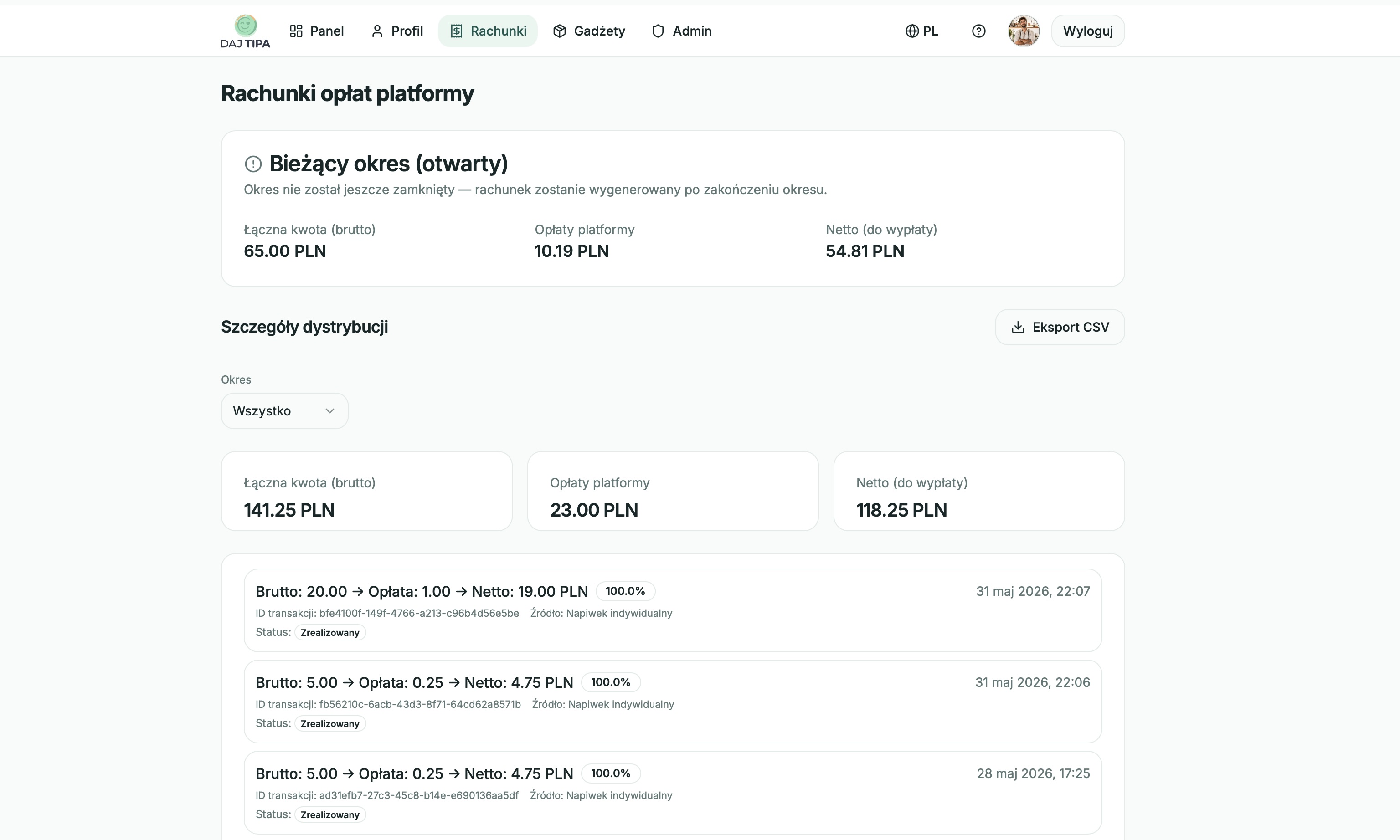
Distribution history
The distribution list shows date, gross amount, fee, net amount, transfer status, tip source and venue name if the tip came from a venue.
You can filter data by date range, such as all entries, this month, last month or a custom range.
The checks view shows gross amounts, fees, net amounts and settlement statuses.
Invoices and documents
After a settlement period closes, DajTipa may generate a document summarizing platform fees. In the documents section you can see the number, period, amounts, issue date, status and PDF download button.
If you need a corrected document, contact support.
Fees and transfer statuses
The service fee is visible on each distribution, so you can see exactly what was deducted. The current fee structure is described on the pricing page.
Pending means a transfer record exists but has not started yet. Transferred means funds were sent to Stripe. Failed means there was a transfer problem, usually requiring a Stripe account check or support contact.
Billing and materials
Web Shop and gadgets
19
The Web Shop lets you order printed materials with your QR code, such as cards, stickers and stands.
In this article
What the shop is for
Cart and delivery
Payment
Orders and problems
What the shop is for
The gadgets shop lets you order ready printed materials with your personal QR code. You do not need design skills or print files.
The product catalogue may change. Typical products include business cards, stickers and table or counter stands.
Cart and delivery
Choose a product, add it to the cart and change the quantity with plus and minus buttons. The cart shows item count and total price.
Before payment, choose courier delivery or an InPost parcel locker. For courier delivery, enter the full address. For a parcel locker, choose the point from the map and confirm it.
Payment
Enter contact details, review the order summary, accept the required documents and continue to payment.
Payment is handled by Stripe. DajTipa does not store card details. Depending on availability, you can use card, BLIK, Google Pay or Apple Pay.
Orders and problems
After successful payment, you see a confirmation and order number. The order appears in My Orders, where you can check the date, amount, payment status, order status and recipient.
If payment fails, check the details and 3D Secure confirmation. If you entered the wrong address or the order stays pending for a long time, contact support with your order number.